
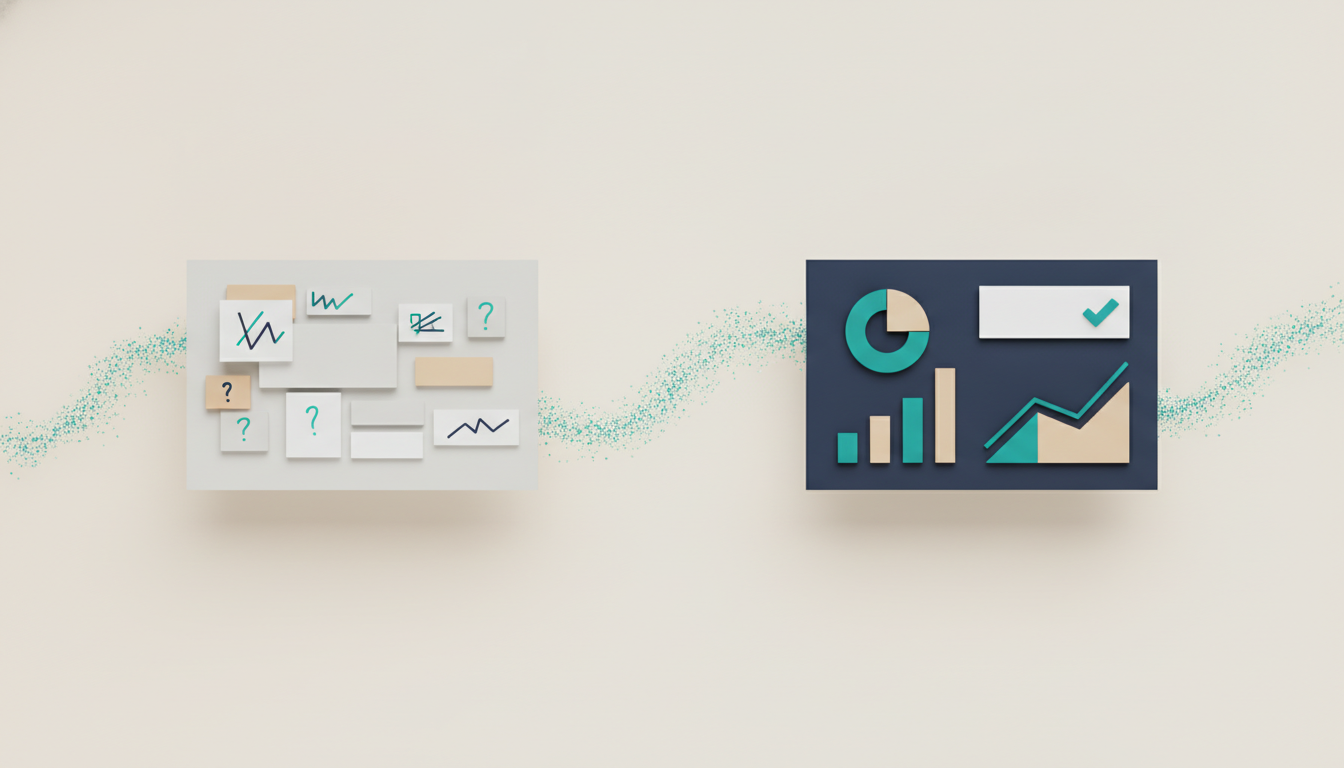
A slideshow shown live is a different object from a document sent to be read, and the biggest mistakes come from confusing the two. Here is how to make a good slideshow presentation — one built for a room, a screen, and a speaker — that lands with a live audience instead of drowning them in text.
Most business "slideshows" are really documents in disguise. Dense paragraphs, seven bullets a slide, a chart with every data point labeled — the kind of thing that works when someone reads it alone at their desk, and fails the moment it is projected while you talk over it. The audience faces an impossible choice: read the slide or listen to you. They cannot do both, so they do neither well, and your message is lost in the gap.
A good slideshow accepts that when it is on screen, the slide and the speaker are one unit. The slide carries the image and the headline; you carry the detail. Get that division right and the presentation feels effortless. Get it wrong and no template will save you. This is the core of building for live delivery, and it drives every choice below.
Decide first: is this a slideshow or a leave-behind?
The most useful question to ask before building is whether the deck will be presented live, sent to be read, or both. The two jobs pull in opposite directions:
- A live slideshow should be visual and sparse. The screen supports the speaker; the words come from your mouth.
- A read deck (a leave-behind or pre-read) has to stand alone, so it carries more text and explanation.
Trying to make one deck do both is why so many slideshows fail — they are too dense to present and too thin to read. If you need both, the professional answer is to build the sparse presenter version and put the detail in an appendix or a separate written summary. Do not compromise the live slideshow to make it self-explanatory.
One idea per slide, and let it breathe
For a live slideshow, the rule is stricter than for a read deck: one idea per slide, expressed as large as it will go. A single strong chart. A single number that matters. A short headline the audience can absorb in the two seconds before they return their attention to you. If the audience is still reading your slide while you have moved on, the slide is too full.
This feels uncomfortable if you are used to dense decks — it looks like there is "not enough" on the slide. That emptiness is the point. The white space is where your spoken words live.
Make it legible from the back of the room
A slideshow is viewed from a distance, often on a screen with glare, sometimes over a video call compressed to a thumbnail. Text that is fine on your laptop can be unreadable in the room. Size up: headline text should be large, body text minimal and large, and small footnotes reserved for sources you are not asking anyone to read live. High contrast — dark text on light, or the reverse — beats subtle gray-on-gray every time. If you cannot read the slide standing across your own office, the back row cannot either.
Build the story to be spoken
A read deck can rely on the reader scanning back and forth. A live slideshow moves in one direction, at your pace, and the audience cannot flip back. That means the sequence has to be airtight. Write your slide titles as a chain of assertions that build to your conclusion, and rehearse reading only the titles aloud — if the story holds with just the headlines, it will hold when you add the detail. Each slide should hand off naturally to the next, so the transitions in your talk feel inevitable rather than abrupt.
Use speaker notes, not crammed slides
The detail you are tempted to put on the slide belongs in the speaker notes instead. PowerPoint's Presenter View shows your notes on your screen while the audience sees only the clean slide. This lets you keep the projected slideshow sparse while still having your figures, transitions, and the exact phrasing of a key point in front of you. It is the single most underused feature for live presenting, and it is the mechanism that makes "one idea per slide" survivable when you are nervous.
Rehearse the transitions, and cut animation to a minimum
A good slideshow is paced. Practice the moments between slides — the sentence that closes one point and sets up the next — because that is where live presentations stall. Keep builds and animations minimal and purposeful: reveal a chart's key bar when you reach it, if it genuinely helps the audience follow. Spinning entrances and sound effects read as amateur in a business setting and distract from the point. When in doubt, cut the animation.
Where AI tools fit for live decks
AI presentation tools are good at producing the visual, sparse slides a live slideshow needs, and they save real time on layout — but choose with the live case in mind. Gamma builds attractive, minimal slides quickly, though its weak PowerPoint export matters if you need to present from PowerPoint's reliable Presenter View in a client's boardroom. Beautiful.ai keeps slides clean, which suits live delivery, but its guardrails can fight dense financial content. Each helps you get to a sparse first draft; none rehearses the talk or writes your speaker notes.
AutoPresent generates fully editable PowerPoint, which matters specifically for live delivery because you present from the tool professionals trust in the room, with Presenter View and speaker notes intact. You can generate a clean, visual first version from a prompt or a document, then strip it down for the stage and add your notes underneath each slide. It handles the look so your rehearsal time goes into the talk. There is a free tier to build your next presentation with and try it before a real audience sees it. The tool builds the slides; the delivery is still a performance you own.
The takeaway
A good slideshow presentation is built for a live room, not a quiet desk. Decide whether you are presenting or sending, keep one idea per slide, make it legible from the back, move the detail into speaker notes, and rehearse the transitions. The audience is there to hear you think, not to read your slides — so build the deck that lets them.