

Stop wasting hours manually formatting slides from your meeting notes. See how AutoPresent synthesizes complex MoM PDFs into structured, brand-aligned, and fully editable board-ready slides.
For founders, consultants, and operators, the hours following an important meeting are often consumed by a tedious administrative task: translating raw notes, action items, and Minutes of Meeting (MoM) documents into a polished deck for stakeholders or board members.
Manually extracting key data points, designing clean tables, and aligning layouts is a major bottleneck.
With AutoPresent, an AI presentation maker designed for professional workflows, you can bypass manual formatting entirely. This article walks through how AutoPresent ingests raw meeting notes and instantly structures them into highly professional, fully editable slides that match your brand.
The Problem: The Post-Meeting Slide Bottleneck
After a critical alignment session or project review, you are left with pages of text, data points, and context. Turning these raw notes into a presentation usually requires:
- Information Overload: Sifting through pages of text to find the core metrics and takeaways.
- Manual Layout Design: Spending hours building tables, status indicators, and timelines in PowerPoint.
- Inconsistent Formatting: Struggling to keep fonts, colors, and alignments consistent with corporate brand guidelines.
This manual process delays decision-making and diverts valuable time away from strategic work.
The Solution: The "Meeting Notes to Deck" Workflow
AutoPresent automates the heavy lifting of slide design and data synthesis. Rather than starting from a blank slide, you can feed your raw documents directly into the platform to generate structured, executive-ready layouts.
Here is the step-by-step workflow demonstrated in the platform:
Step 1: Prepare Your Source Document
Start with your raw meeting notes. In this example, the source document is a detailed PDF titled Project Atlas_22_July_MoM.pdf, which contains complex notes on a "Cyber Underwriting & Capital Allocation Strategy" meeting. The document includes attendee lists, context on premium growth, portfolio discussions, and specific metrics across various sectors (such as Municipalities, Tier-1 Financial Institutions, and Healthcare).
Step 2: Input Your Prompt and Upload
In the AutoPresent interface, enter a clear instruction in the prompt box, such as:
"Please synthesize these meeting notes and make a board-ready slide"
Simply drag and drop your PDF, Word document, or text file directly into the prompt area alongside your instruction.
Step 3: Generate the Slide
Click create, and AutoPresent's AI engine analyzes the unstructured text, identifies the core data hierarchy, and selects the optimal layout—such as a table, timeline, or chart—to represent the information.
The Result: Structured, Brand-Aligned, and Fully Editable Slides
Instead of a generic wall of text, AutoPresent outputs a highly structured, executive-ready slide.
Analyzing the Generated Output
In the demonstrated workflow, AutoPresent synthesized the complex cyber underwriting notes into a clean, professional table titled "Cyber Underwriting & Capital Allocation Strategy" with the subtitle "Portfolio Risk Assessment, Allocation Capacity, and Reinsurance Alignment for FY27."
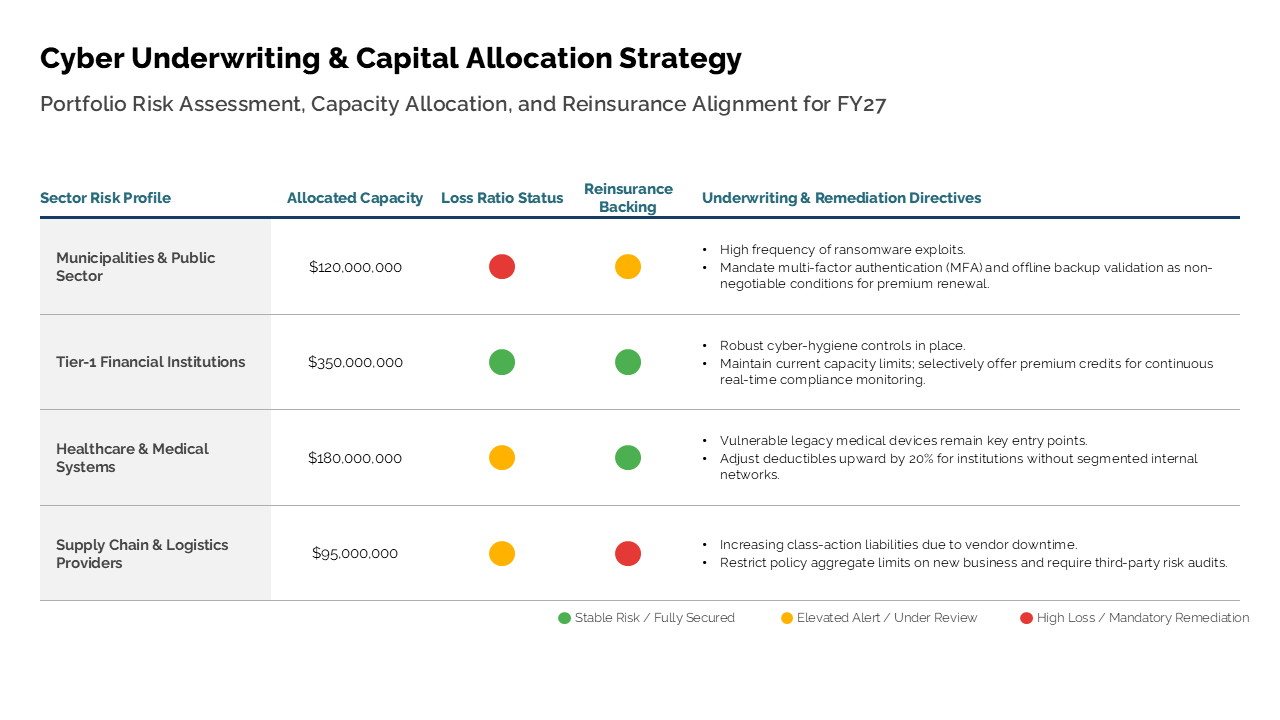
The generated slide automatically organized the raw data into four logical columns:
- Sector Risk Profile: Categorizing the industries discussed (e.g., Municipalities & Public Sector, Tier-1 Financial Institutions, Healthcare & Medical Systems).
- Allocated Capacity: Extracting and formatting the exact financial figures (e.g., $420,000,000, $550,000,000) from the text.
- Loss Ratio Status: Translating text-based risk assessments into clear, color-coded visual indicators (red, green, and yellow status circles).
- Underwriting & Remediation Directives: Summarizing the key action items and strategic directives for each sector into concise, readable bullet points.
True Editability, Not Flat Images
Unlike basic AI tools that output flat, unchangeable screenshots, AutoPresent generates fully editable slides. Once the slide is created, you can interact with every element:
- Text Boxes: Refine copy, adjust headings, and edit bullet points directly.
- Shapes & Visuals: Modify the size, color, and placement of table cells and status indicators.
- Layout & Hierarchy: Reorganize columns or tweak the visual structure to fit your exact narrative needs.
- Brand Styling: The entire slide is generated using your organization's specific brand colors, fonts, and templates.
Diverse Layouts for Any Data Type
Different meeting notes require different visual structures. AutoPresent automatically matches the layout to the nature of your content:
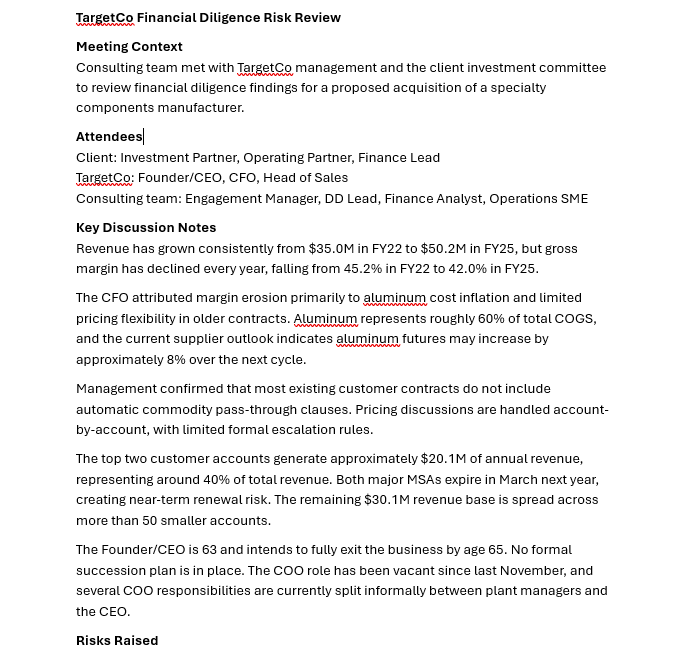
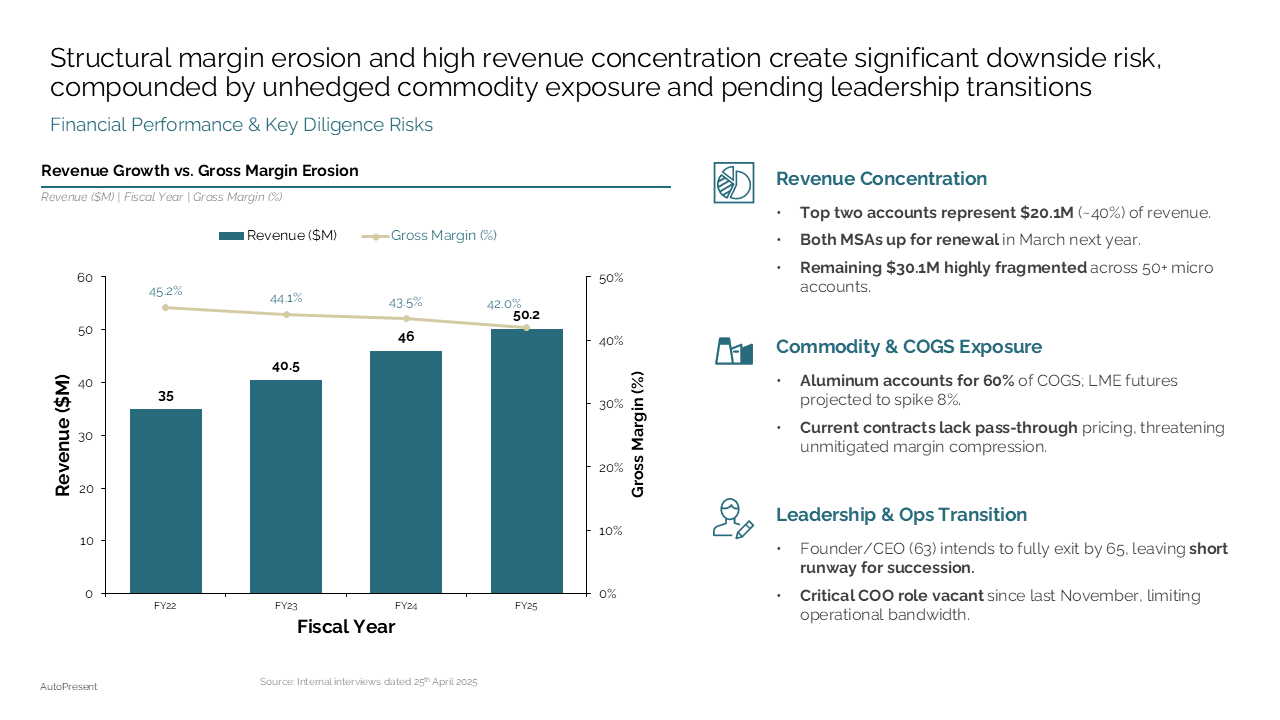
Financial & Performance Data
AutoPresent can generate structured bar charts and financial tables to compare metrics across fiscal years.
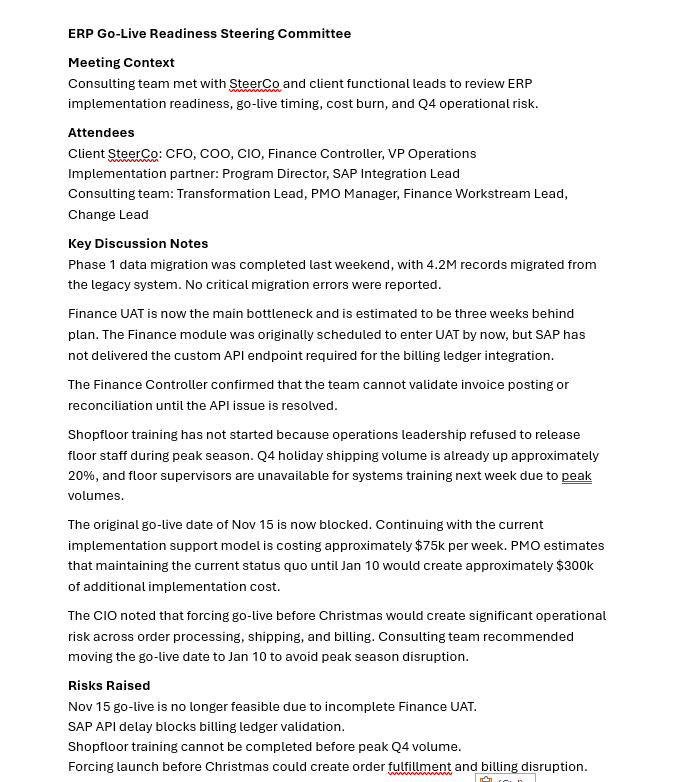
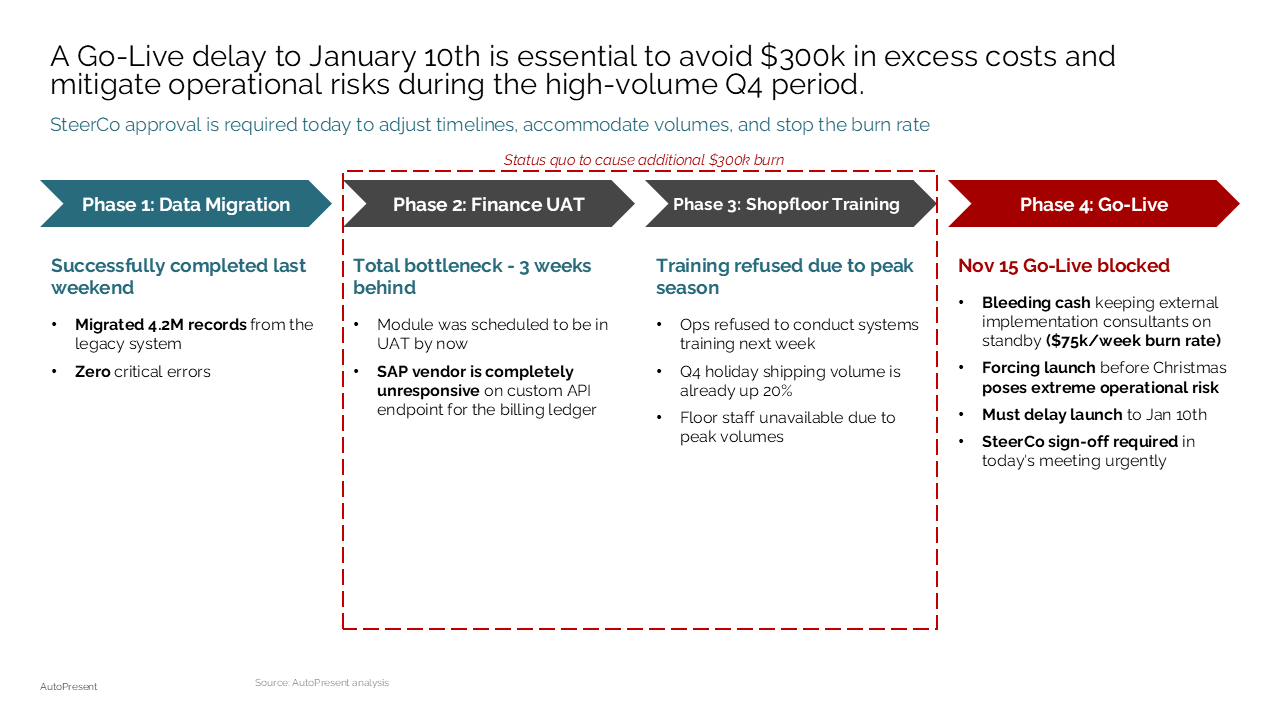
Project Milestones & Phases
Implementation plans can be converted into clean horizontal phase diagrams that show ownership, delays, and decision points.
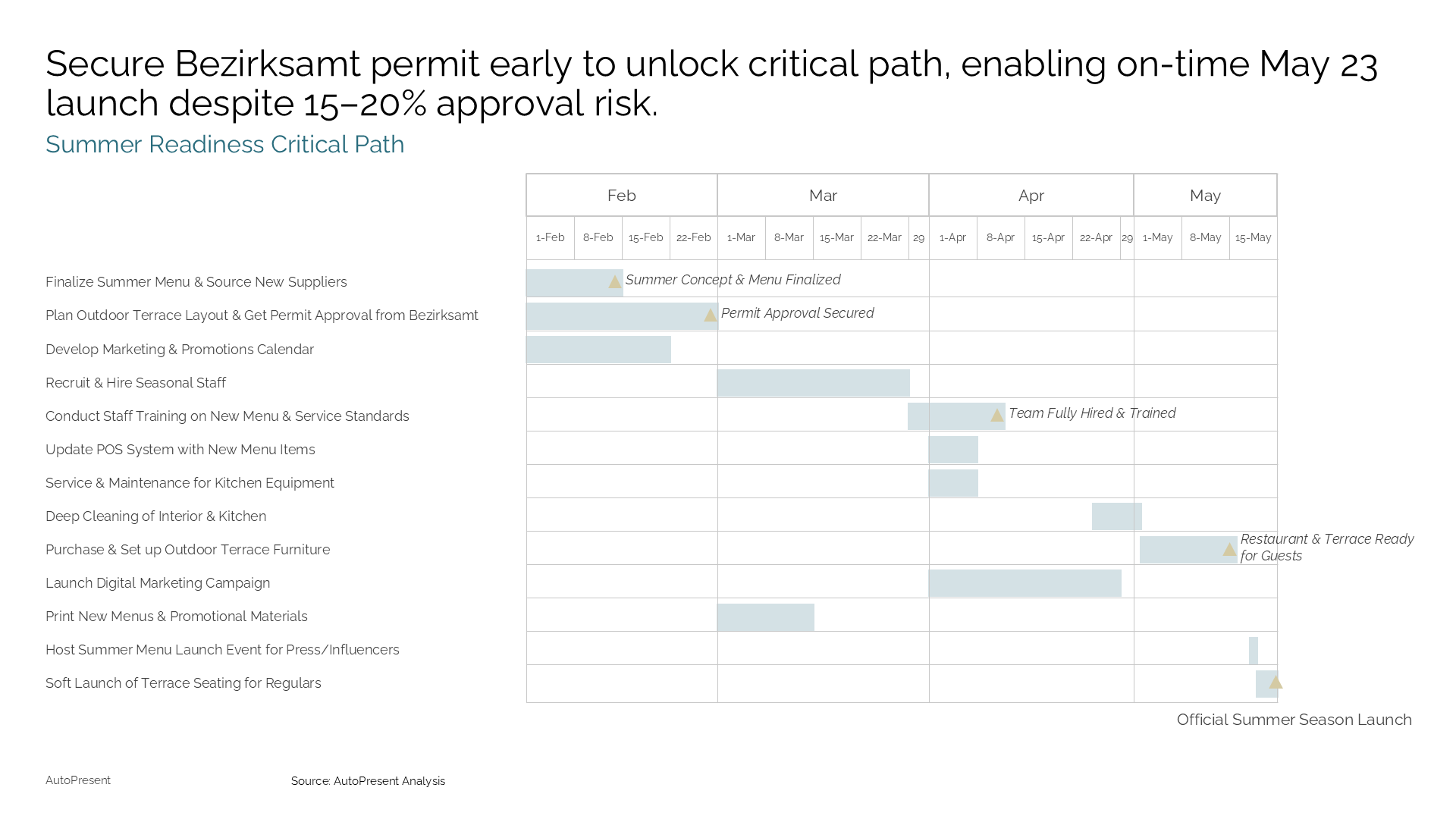
Timelines & Gantt Charts
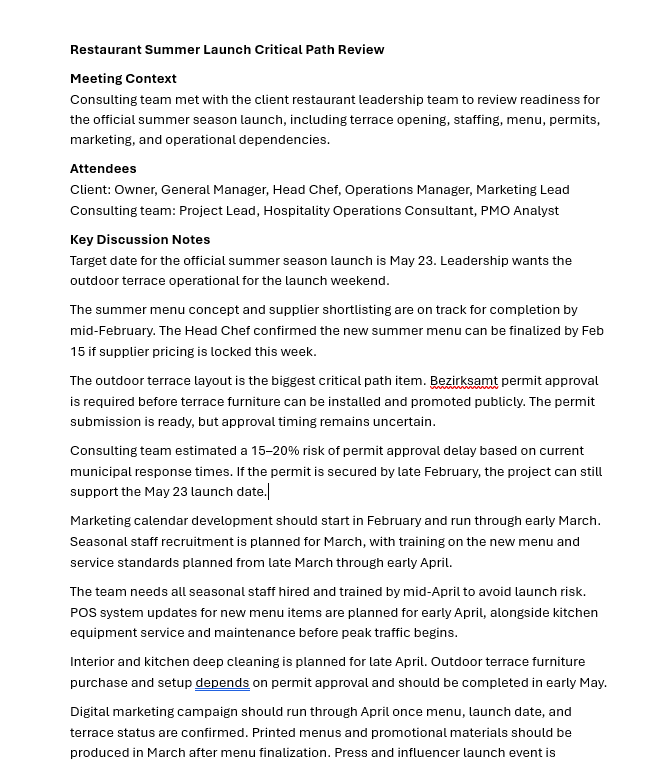
Scheduling notes can be translated into visual project roadmaps with dependency markers and risk windows.
Key Benefits of AutoPresent for Professionals
- Hours Saved on Formatting: Skip the manual creation of tables, status dots, and alignment grids.
- Immediate Executive Quality: Generate slides that are instantly ready for board meetings, client presentations, or internal reviews.
- Design Consistency: Ensure every slide strictly adheres to your corporate brand guidelines, colors, and typography.
- Clarity of Information: Turn dense, hard-to-read meeting minutes into scannable, high-impact visual summaries.
Practical Use Cases
- Consulting Deliverables: Quickly turn client workshop notes into structured progress updates and framework slides.
- Corporate Governance: Convert lengthy committee meeting minutes into concise board decks for executive alignment.
- Product & Project Management: Translate post-mortem notes or sprint planning documents into visual timelines and status tables.
- Sales Handover: Transform discovery call notes into structured proposal slides for prospective clients.
Frequently Asked Questions (FAQ)
Can I edit the slides after AutoPresent generates them?
Yes. Every slide generated by AutoPresent is composed of native, editable elements. You can click into any text box, adjust table columns, change color-coded indicators, and modify shapes just as you would in a standard presentation editor.
What file formats can I upload as source material?
You can upload PDFs, Word documents (.docx), text files (.txt), and other standard document formats containing your raw notes or meeting minutes.
Does the AI support my company's specific branding?
Yes. AutoPresent applies your pre-configured brand templates, color palettes, and typography rules to every generated slide, ensuring brand consistency across your organization.