

For founders, consultants, and enterprise operators, the journey from a first draft to a board-ready presentation is often the most tedious part of a project. You start with a clear idea—perhaps a hand-drawn architecture diagram on a whiteboard, a rough sketch of a business framework, or a text-heavy slide containing critical but unorganized data.
Translating these raw concepts into a polished, professional PowerPoint deck usually requires hours of manual alignment, font adjustments, and icon hunting.
AutoPresent solves this bottleneck. As an AI presentation maker designed for professional workflows, AutoPresent allows you to upload rough drafts and hand-drawn sketches, transforming them into structured, visually aligned, and fully editable PowerPoint slides that match your corporate template.
Here is a look at how this transformation workflow works, using real examples of complex business and technical slides.
The Core Challenge: The "First Draft" Bottleneck
When preparing high-stakes presentations for board reviews, client pitches, or internal alignment, professionals face two main challenges:
- The Cluttered Text Slide: Important regulatory, operational, or strategic slides often end up overcrowded. Without a clear visual hierarchy, key stakeholders struggle to digest the information.
- The Whiteboard Sketch: Complex technical architectures, workflows, and lifecycles are easiest to brainstorm by hand. However, manually recreating these sketches in PowerPoint with shapes, connectors, and text boxes is incredibly time-consuming.
Rather than forcing you to start from scratch or spend hours wrestling with alignment tools, AutoPresent acts as an intelligent design partner. It analyzes your rough inputs, understands the underlying structure, and rebuilds them into clean, professional layouts.
Step-by-Step: Transforming a Messy Slide with AutoPresent
The transition from a rough draft to an executive-ready slide is straightforward and highly controllable. Here is the step-by-step workflow demonstrated in the platform:
Step 1: Upload Your Existing Deck
Begin by dragging and dropping your existing PowerPoint presentation (.pptx format) directly into the AutoPresent interface. Whether your deck contains text-heavy drafts or photographed whiteboard sketches, the platform ingests the file to make it fully AI-native.
Step 2: Select Your Target Slide and Choose an Edit Type
Once your deck is loaded, navigate to the slide you want to improve. In the right-hand editing panel, you have several options:
- Quick Text Rewrite: For refining copy and tone.
- Targeted Edit: For executing specific layout and structural changes based on a custom prompt.
- Full Redesign: For a complete visual overhaul.
Step 3: Provide Your Instructions
Select Targeted Edit and enter a specific instruction, such as: "Can you please convert this slide to a board-ready version."
Step 4: Let the AI Plan and Execute the Edits
AutoPresent does not simply apply a generic template. It performs a "surgical update" by scanning the editable regions of your slide and planning a series of scoped edits. For a complex, text-heavy slide, the system automatically plans and executes steps such as:
- Removing redundant text to improve readability.
- Establishing a clear visual hierarchy so the most important points stand out.
- Consolidating related content into logical groupings.
- Aligning sections consistently across the grid.
- Improving information density to balance whitespace and content.
Step 5: Review and Refine the Output
The result is a clean, modern, professionally structured slide. Because the output is native to PowerPoint, every element—including text boxes, shapes, icons, and diagrams—remains fully editable. You can easily adjust the wording, change colors, or move shapes to finalize the slide.
Real-World Transformations: From Sketch to Structured Slide
The true power of AutoPresent lies in its ability to interpret messy, hand-drawn diagrams and convert them into clean, structured vector graphics. The video demonstrates this capability across several highly technical use cases:
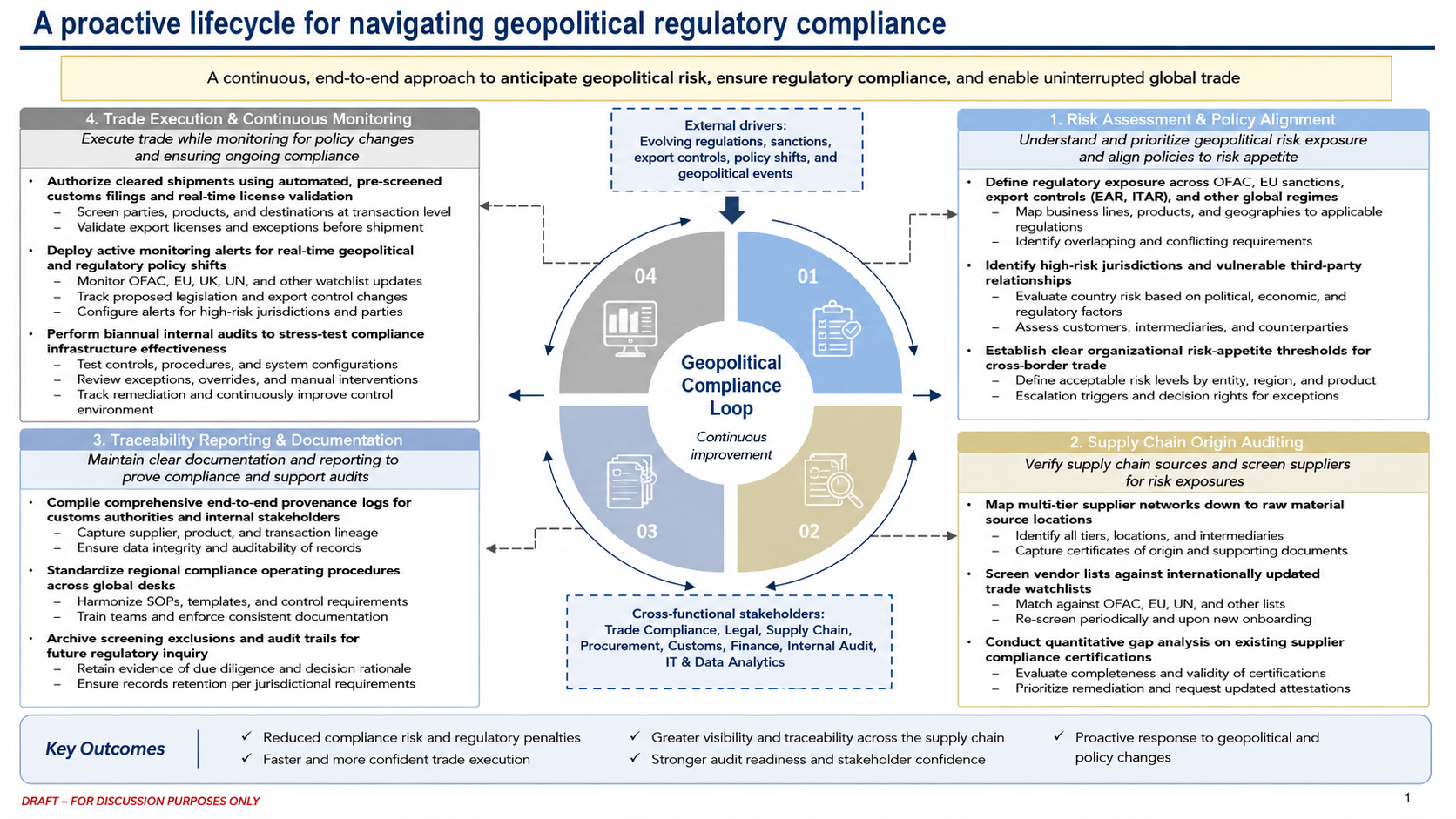
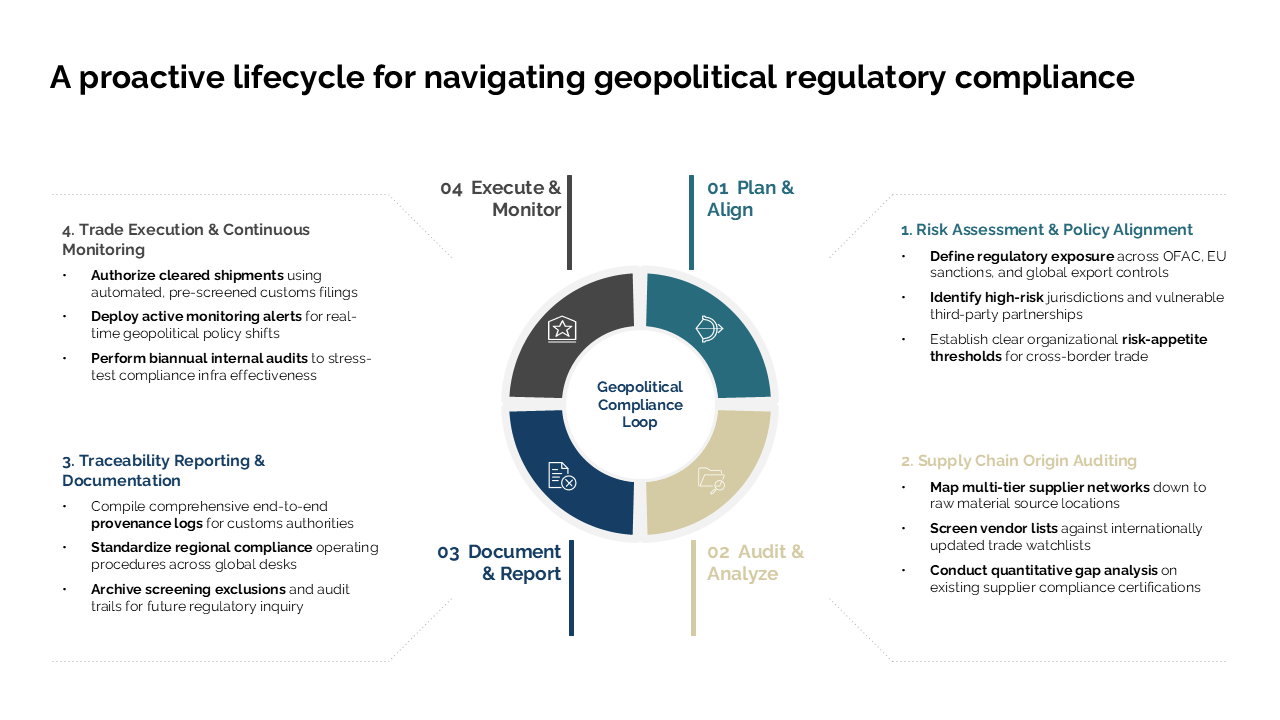
1. Geopolitical Regulatory Compliance Lifecycle
- The Input: A cluttered slide featuring a central "Geopolitical Compliance Loop" surrounded by dense blocks of text, overlapping labels, and inconsistent spacing.
- The Output: A balanced, executive-ready slide. The central circular loop is clearly defined, and the surrounding text blocks are organized into clean, aligned columns with distinct headers and improved visual hierarchy.
2. Decarbonization Lifecycle for Commercial Portfolios
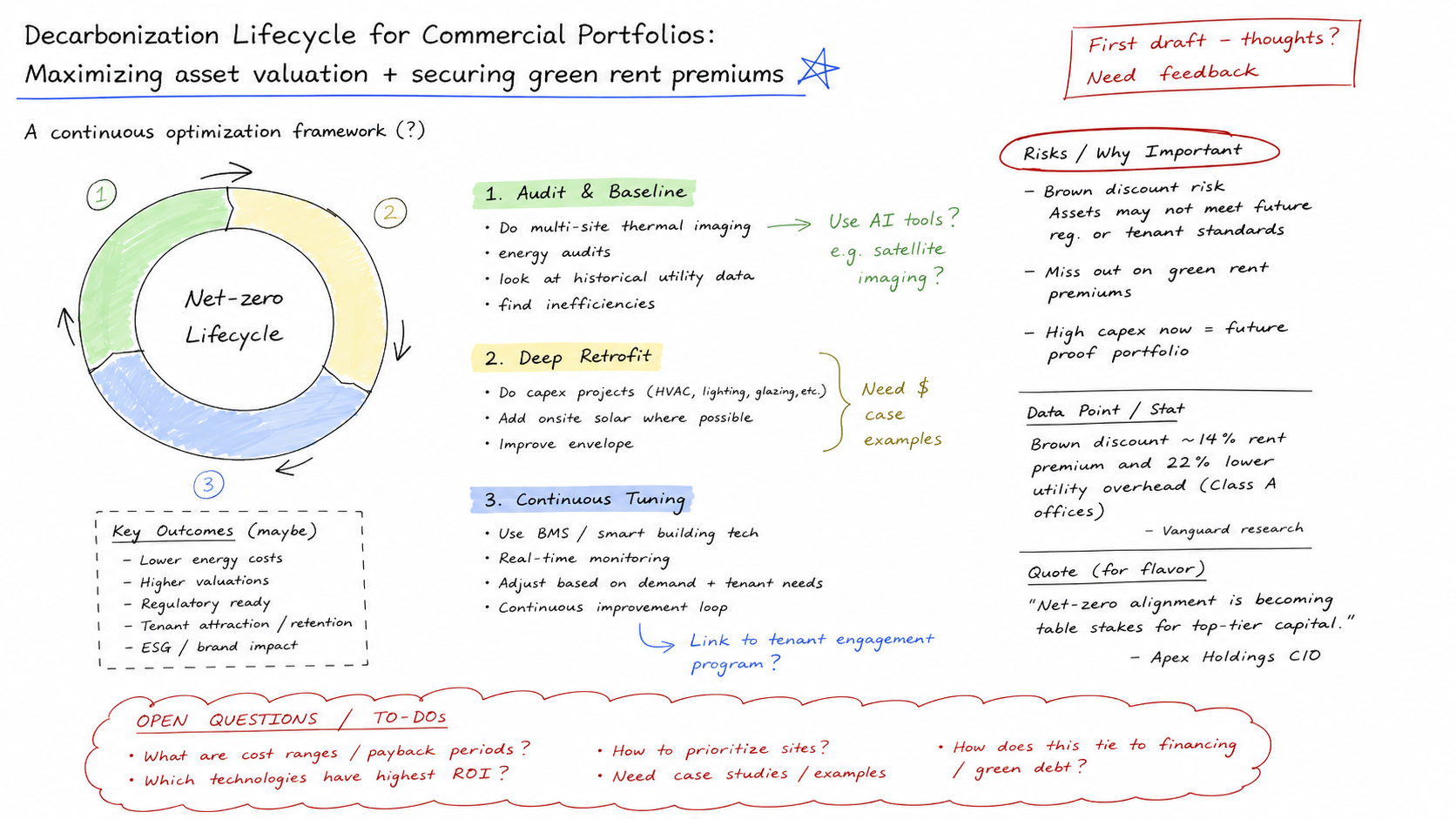
- The Input: A hand-drawn whiteboard sketch using green ink, featuring a circular optimization framework, handwritten notes, and rough arrows indicating steps like "Audit & Baseline," "Deep Retrofit," and "Continued Tuning."
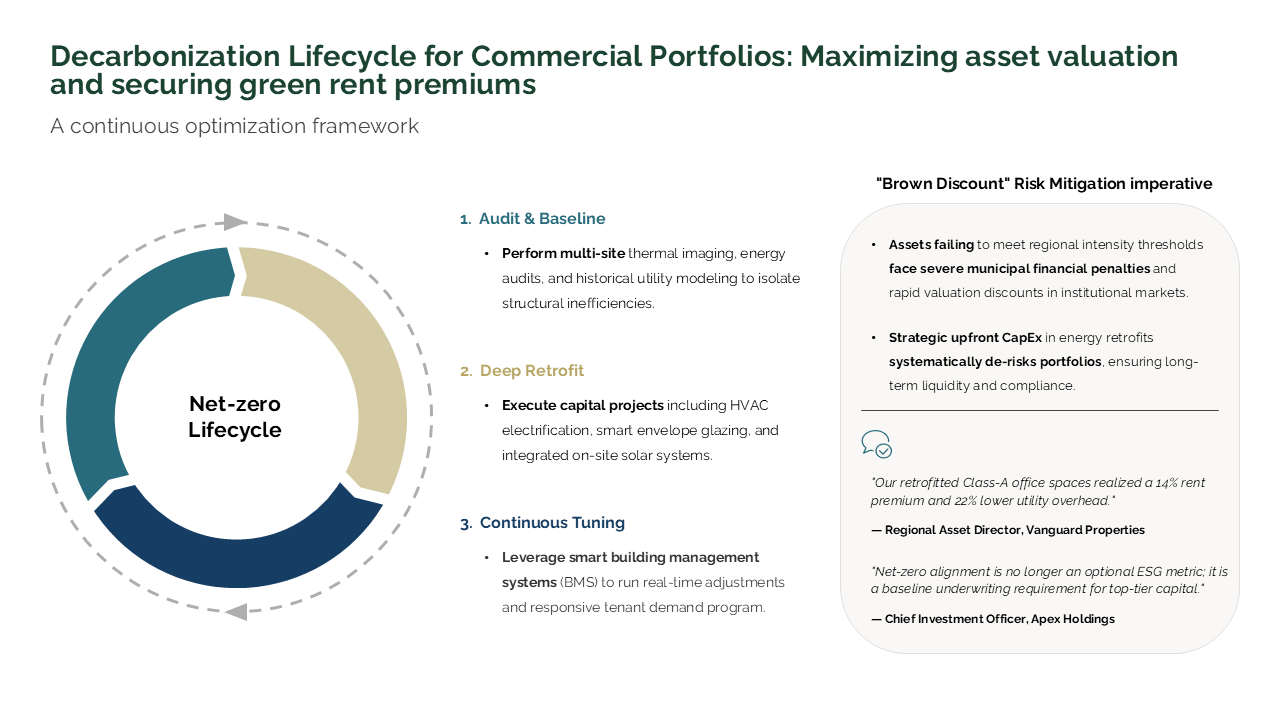
- The Output: A polished corporate slide. The hand-drawn circle is replaced with a clean, vector-based circular process diagram, and the handwritten notes are converted into neatly formatted text columns that maintain the original strategic intent.
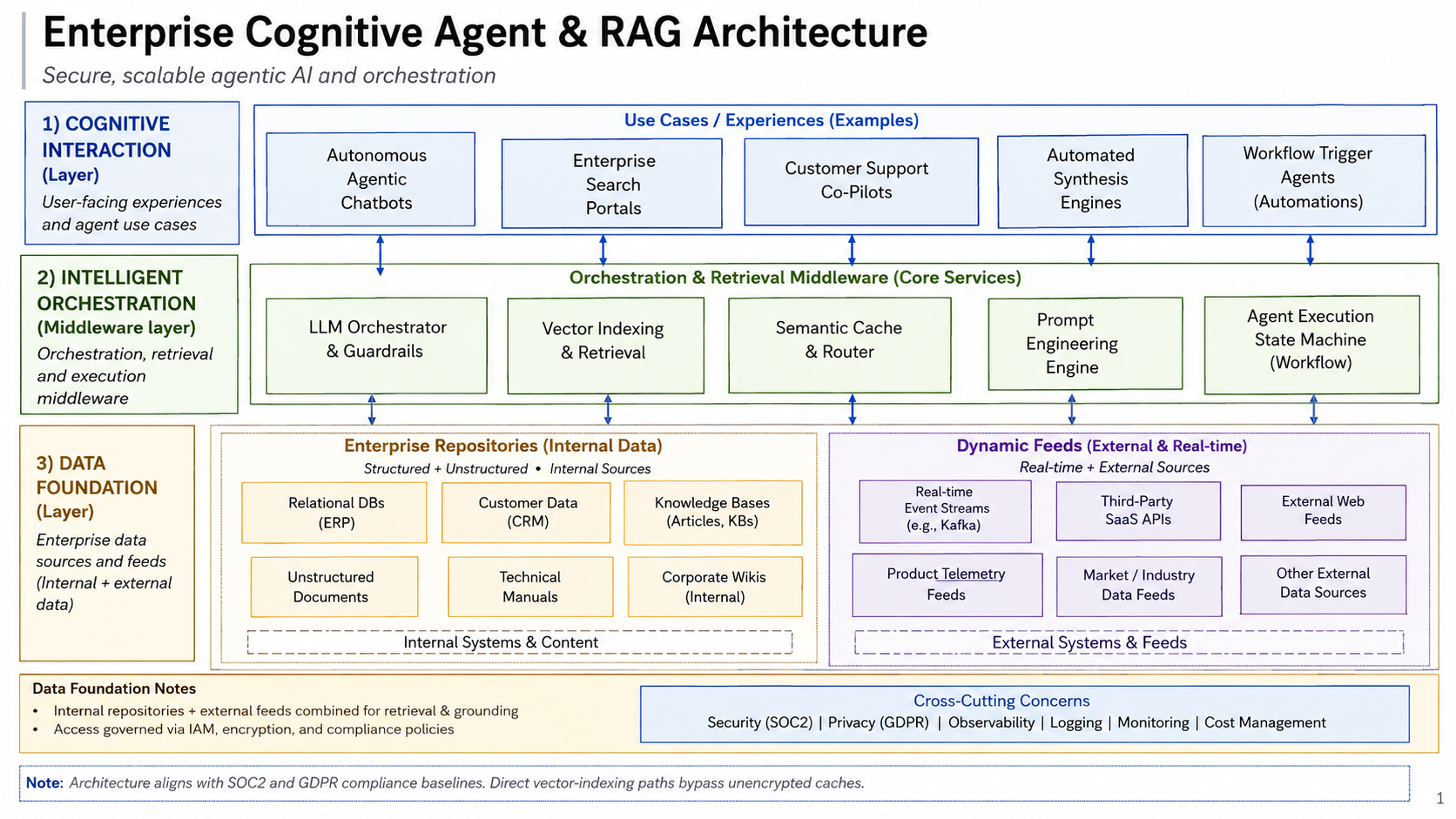
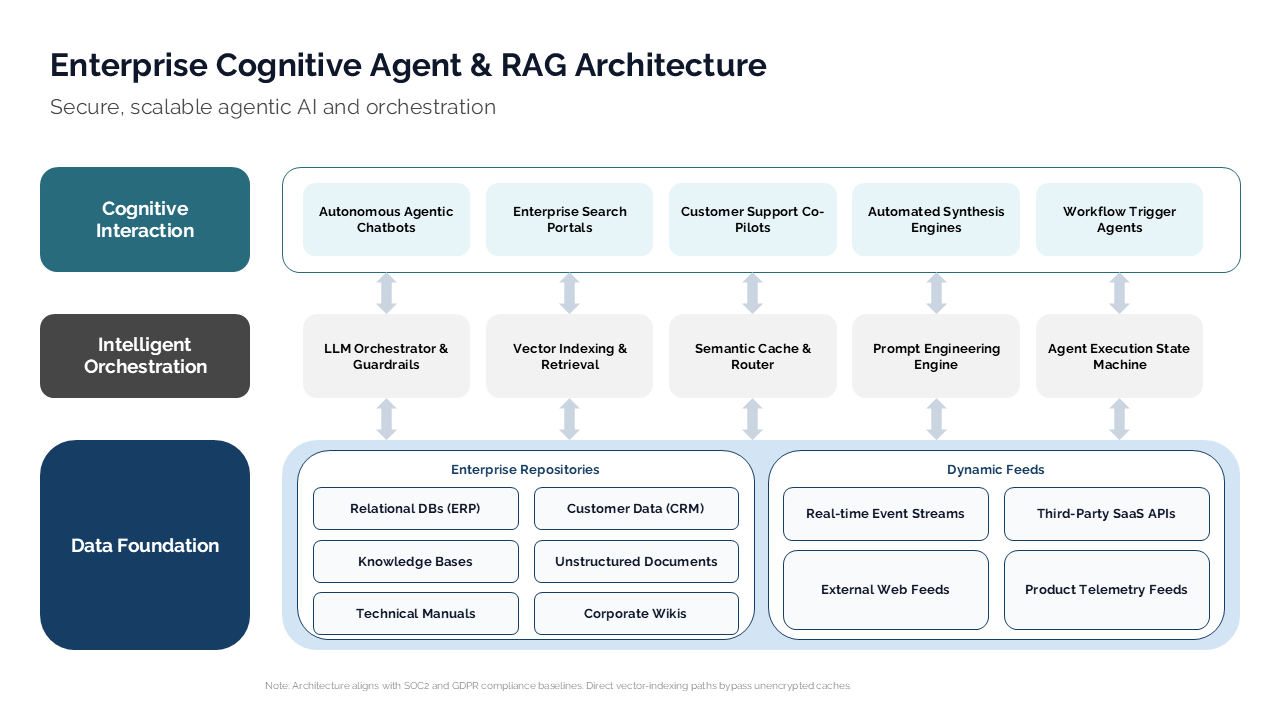
3. Enterprise Cognitive Agent & RAG Architecture
- The Input: A highly complex, hand-drawn architectural blueprint detailing cognitive orchestration layers, data foundations, and enterprise repositories.
- The Output: A crisp, professional technical architecture diagram. The messy boxes and hand-drawn lines are transformed into a structured, layered systems diagram with consistent spacing, clear labeling, and professional color coding.
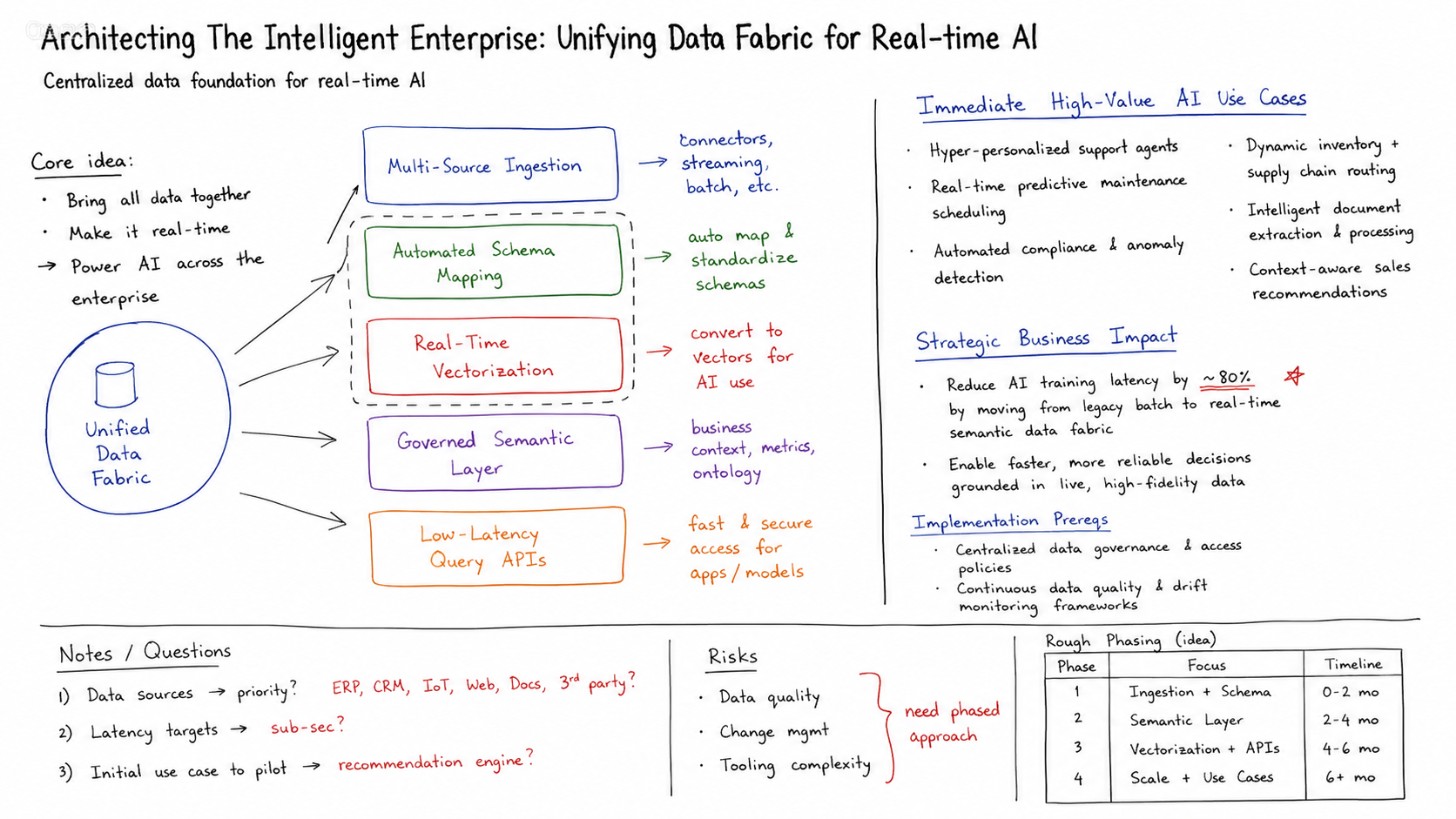
4. Intelligent Data Fabric for Real-Time AI
- The Input: A rough data-fabric architecture sketch that combines platform layers, real-time ingestion notes, and handwritten implementation details.
- The Output: A simplified enterprise architecture slide that separates the data fabric, functional capabilities, and governance narrative into a clearer executive structure.

Why Professionals Choose AutoPresent
By automating the tedious layout and design phases of presentation creation, AutoPresent helps business leaders focus on what matters most: the content and the narrative.
- Maintained Editability: Unlike tools that export flat, unchangeable images, AutoPresent generates true PowerPoint elements. If you need to make a last-minute text change or adjust a color to match a client's brand, you can do so directly within the slide.
- Visual Consistency: The platform ensures that all transformed slides align with your selected template, maintaining consistent fonts, margins, and color palettes across the entire deck.
- Preserved Context: The AI understands the relationship between your notes, shapes, and arrows, ensuring that the logical flow of your original sketch is accurately preserved in the final design.
- Fewer Manual Iterations: Instead of spending hours nudging shapes and aligning text boxes, you can achieve a polished layout in a single step, reducing the time spent on manual formatting.
Practical Use Cases
This workflow is ideal for a variety of professional scenarios:
- Consultants & Advisors: Convert rough frameworks and client-facing models from notebook sketches into polished deliverables.
- Product & Engineering Leaders: Translate complex system architectures, RAG pipelines, and data flows from whiteboard sessions into clear, executive-ready slides for roadmap reviews.
- Sales & Business Development: Turn cluttered, legacy pitch decks into modern, high-impact presentations that command attention.
- Operations & Project Managers: Clean up dense process maps, implementation lifecycles, and risk mitigation strategies for leadership updates.
Frequently Asked Questions
Can I export the final slides back to PowerPoint?
Yes. AutoPresent is designed to integrate with your existing workflow. The output is fully compatible with standard presentation software, allowing you to download your polished deck as an editable .pptx file.
Does the AI support hand-drawn sketches?
Yes. As shown in the workflow, you can upload hand-drawn sketches, whiteboard photos, or rough diagrams. AutoPresent's AI interprets the shapes, text, and connections, converting them into clean, structured digital layouts.
Will the output match my company's branding?
AutoPresent allows you to apply specific templates and design guidelines, ensuring that the generated slides align with your organization's visual identity, fonts, and color schemes.