

Some of the clearest business thinking starts outside PowerPoint.
A strategy framework gets mapped in a notebook. A product workflow appears on a whiteboard. A market-sizing model is sketched quickly during a meeting because drawing boxes and arrows is often the fastest way to think.
The problem starts later, when that useful rough sketch has to become a polished slide. Someone has to recreate the structure, type the labels, align the shapes, redraw the arrows, clean up the hierarchy, and make the whole thing credible enough for a client, leadership team, or board audience.
AutoPresent's Sketch-to-Slide workflow is built for that handoff. It takes a rough visual idea and turns it into a structured, editable PowerPoint slide, so the original thinking stays intact while the presentation work becomes much easier to refine.
What the Sketch-to-Slide Demo Shows
The video introduces AutoPresent's Sketch-to-Slide capability, then walks through a simple workflow:
- A user opens a research folder containing documents, spreadsheets, PDFs, images, and an existing deck.
- They select an image file.
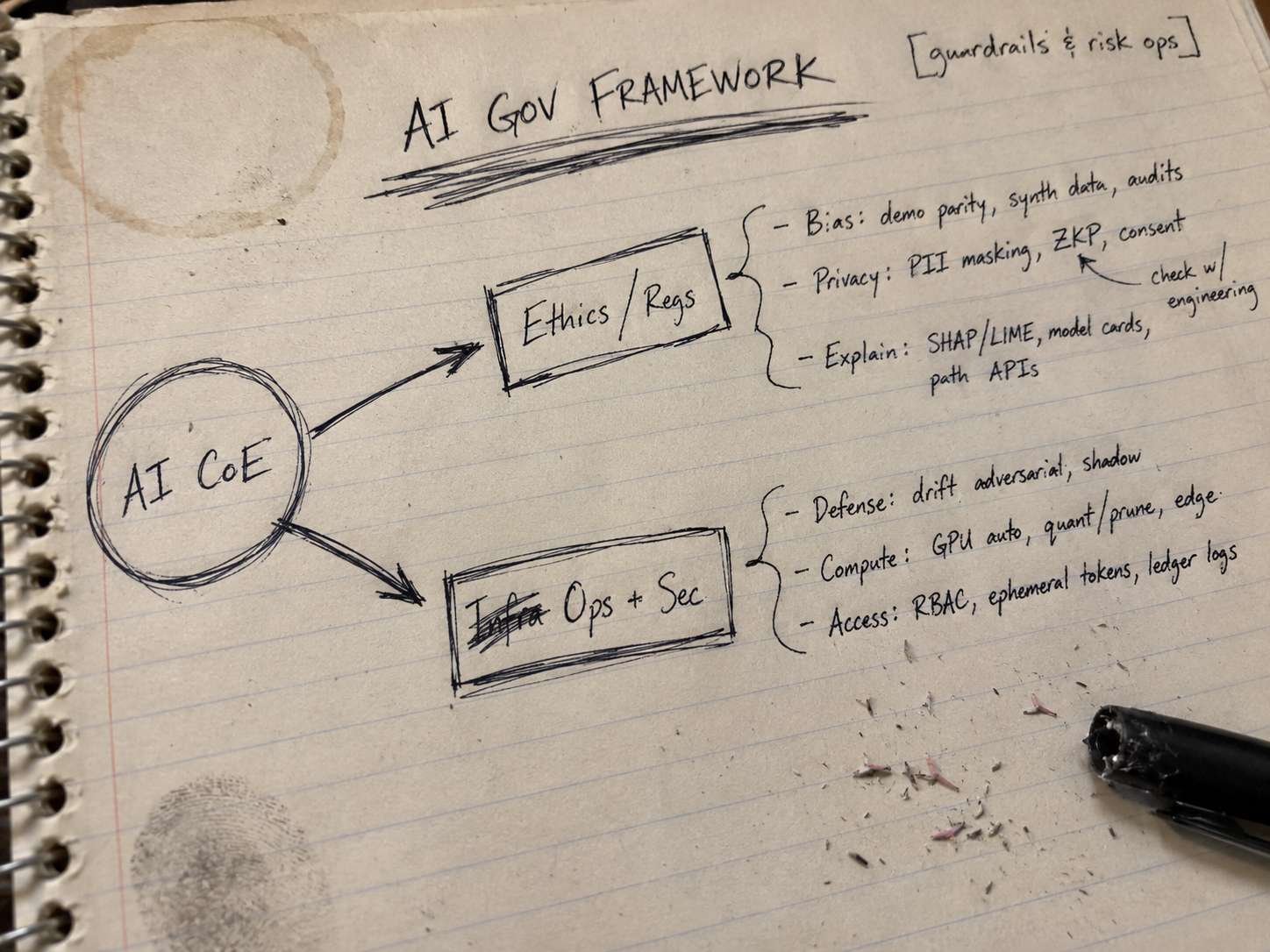
The raw notebook sketch captures the core structure: AI CoE at the center, with governance pillars and supporting notes around it. - The image opens as a photo of a handwritten notebook sketch.
- The user gives AutoPresent a direct prompt: "Convert my rough sketch into a board-ready slide."
- AutoPresent creates a polished slide from the sketch.
The source sketch is titled "AI GOV FRAMEWORK" and includes a rough hub-and-spoke structure:
- A central AI CoE node
- A branch for Ethics / Regs
- A branch for Ops + Sec
- Notes about bias, privacy, explainability, defense, compute, and access control
As a sketch, it works because the strategic logic is visible. As a slide, it needs clearer hierarchy, cleaner spacing, readable labels, and a more executive-ready structure. That is the gap AutoPresent is designed to close.
From Handwritten Structure to Editable PowerPoint
The important part is not simply that AutoPresent makes the sketch look better. The important part is that the output becomes a slide you can continue working with.
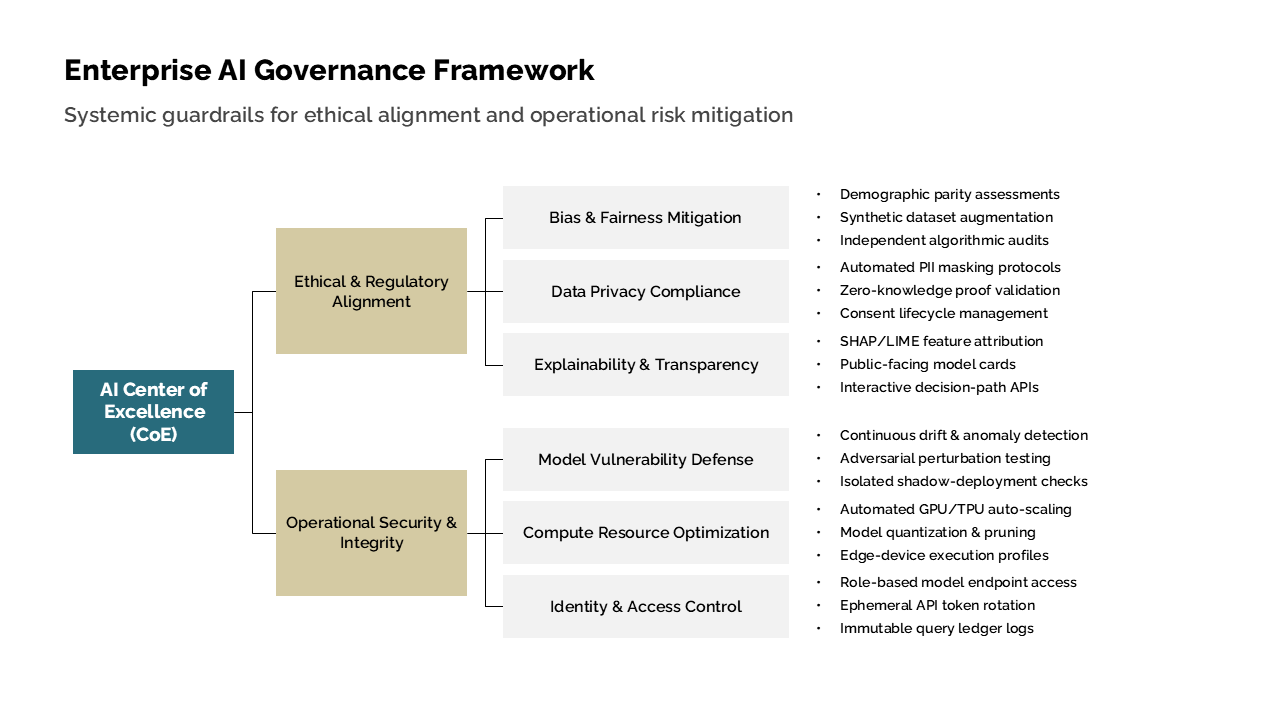
Instead of treating the sketch as a flat image, AutoPresent interprets the page as a presentation structure: text, groupings, connectors, hierarchy, and layout intent. In the demo, the rough AI governance diagram becomes a polished slide titled "Enterprise AI Governance Framework", with a clean visual hierarchy around the AI Center of Excellence and its governance pillars.
For teams creating business presentations, this matters because the slide is not the end of the process. It is usually the next draft. You may still need to adjust wording, move a section, change the emphasis, match a company template, or tailor the content for a specific audience.
Editable PowerPoint output gives you that control:
- Text can be refined instead of retyped from scratch.
- Shapes and connectors can be adjusted as the story changes.
- Layouts can be adapted to match the rest of the deck.
- Rough handwritten notes can become structured slide content without losing the original logic.
That is the real value of sketch-to-PowerPoint conversion: it preserves the speed of sketching while giving you the flexibility of a proper presentation file.
Why Sketches Are So Hard to Rebuild Manually
Recreating a sketch in PowerPoint is rarely difficult because of one individual task. It is difficult because of the accumulation of small tasks.
You have to decide which parts of the sketch are headings, which are sub-points, which arrows matter, which labels need rewriting, and how the visual relationship should be expressed on a clean slide. Then you still have to build it: boxes, lines, text boxes, spacing, colors, alignment, and visual balance.
That production layer can slow down good thinking. A sketch that was useful in the moment becomes a formatting chore.
AutoPresent changes the workflow by letting the sketch remain the starting point. You can capture the idea while it is still rough, upload the image, and use a prompt to describe the desired standard of output. In the demo, that prompt is intentionally plain: "Convert my rough sketch into a board-ready slide."
The prompt does not ask for a complex design specification. It gives the system the goal: turn this rough sketch into something appropriate for a professional presentation.
What AutoPresent Has to Understand
A useful sketch-to-slide tool needs to do more than read handwriting.
For the AI governance example, AutoPresent has to recognize that AI CoE is the central concept, that Ethics / Regs and Ops + Sec are parallel pillars, and that the surrounding notes belong under those pillars. It also has to turn abbreviated, handwritten content into a slide structure that an audience can scan quickly.
That means the system is interpreting several layers at once:
- Text: titles, labels, bullets, and abbreviations
- Geometry: circles, boxes, arrows, columns, and timelines
- Relationships: what connects to what, and which ideas are grouped together
- Presentation intent: what should become a title, a section, a callout, or supporting detail
This is why the result feels different from a simple OCR workflow. OCR can extract words. A presentation workflow has to organize those words into a visual argument.
More Than One Kind of Sketch
The video also shows that Sketch-to-Slide is not limited to one diagram style. After the AI governance example, AutoPresent shows additional before-and-after examples built from different kinds of sketches.
Agility Hub
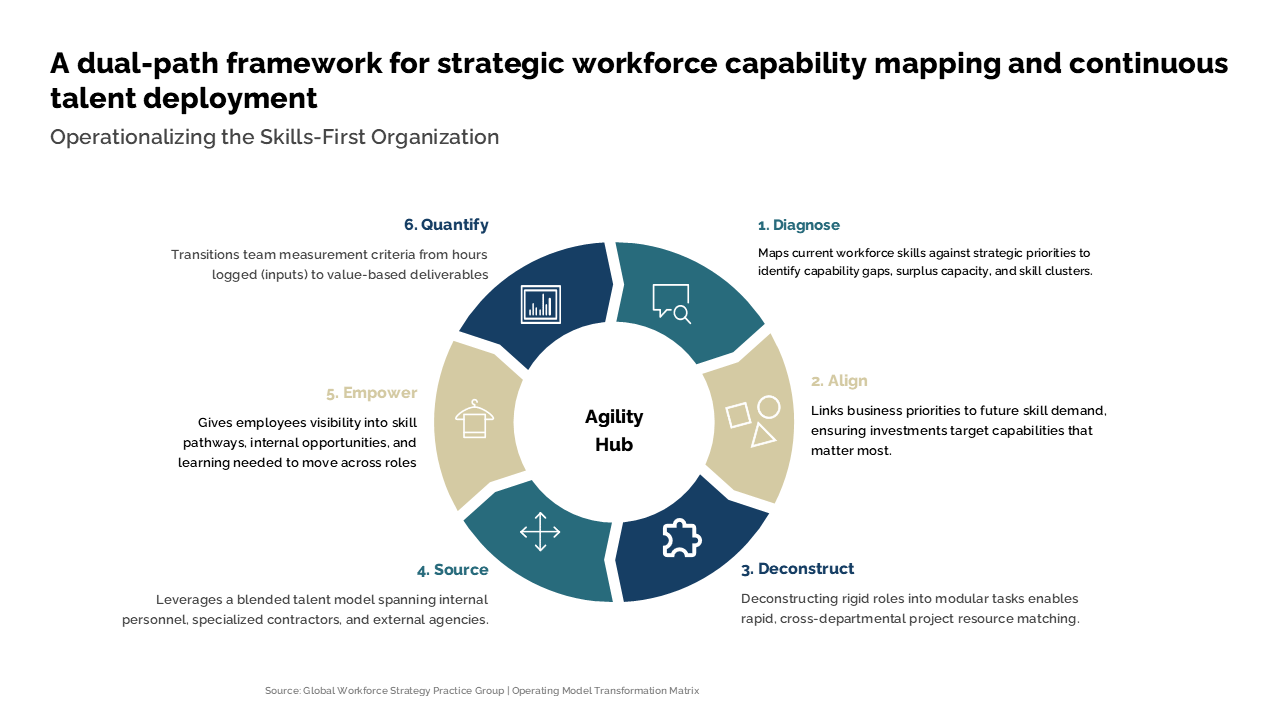
One example starts as a circular workflow sketch around an Agility Hub.
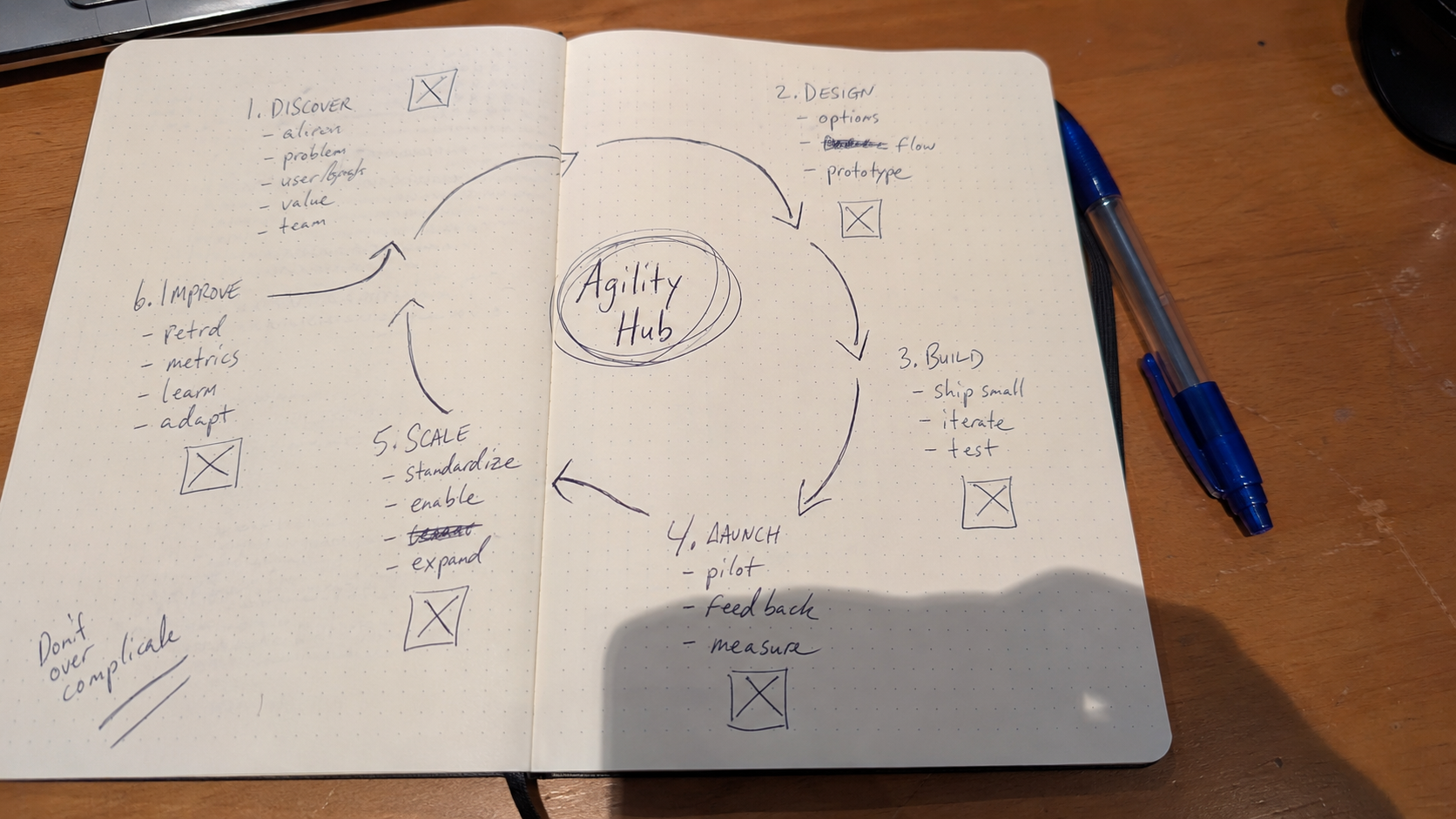
This kind of drawing is common when teams are mapping loops, operating models, feedback cycles, or continuous improvement processes. AutoPresent turns that kind of circular structure into a more readable slide format with clearer stages and visual rhythm.
Scaling Instant Payments
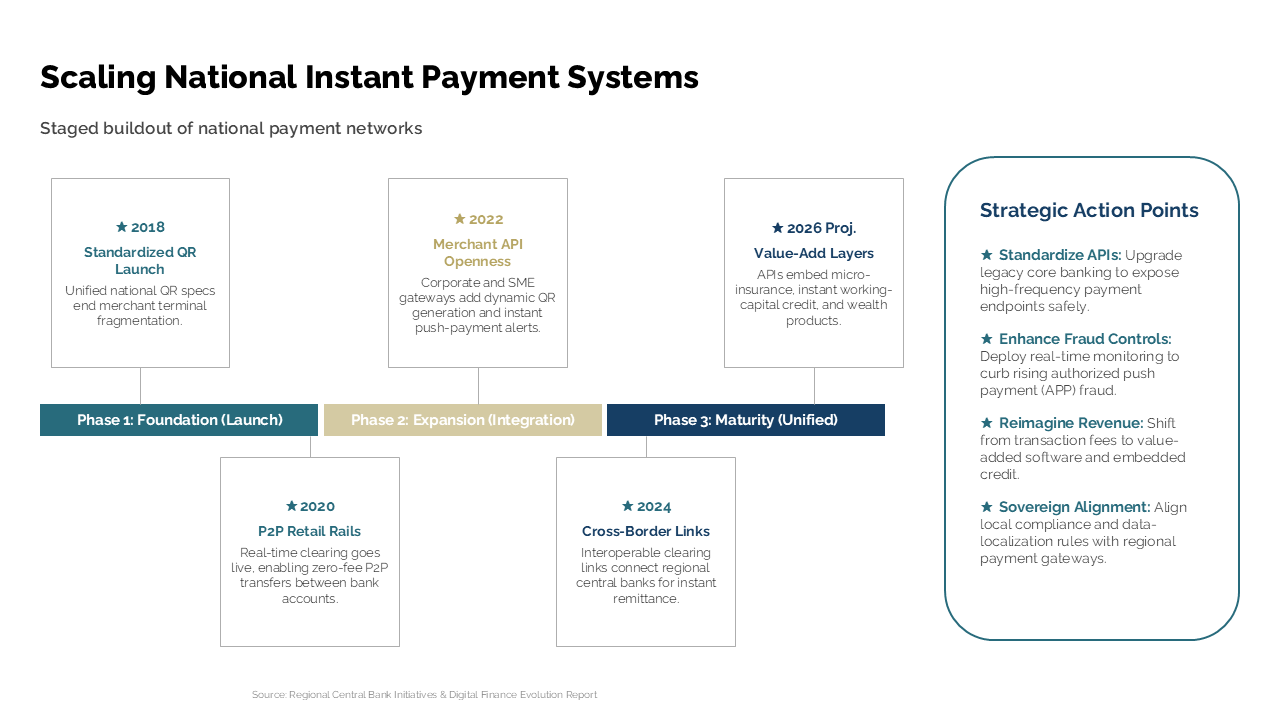
Another sketch maps Scaling National Instant Payment Systems as a timeline.
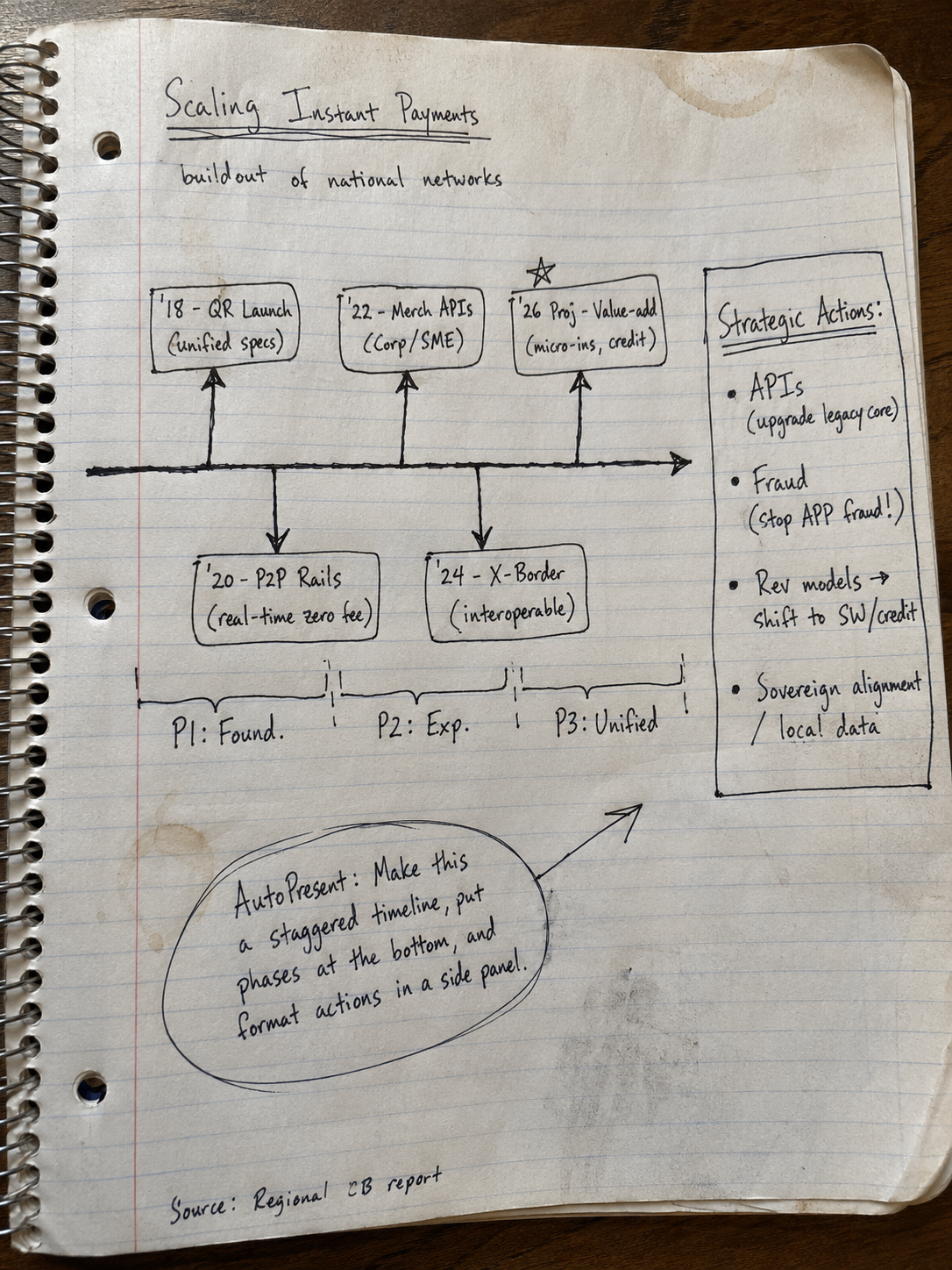
Roadmaps like this are often drawn quickly because the sequence matters more than the polish at first. AutoPresent converts the hand-drawn timeline into a structured slide that is easier to present, compare, and refine.
Ecosystem-Led Distribution
The demo also includes an Ecosystem-Led Distribution sketch with market sizing and multi-column comparisons.
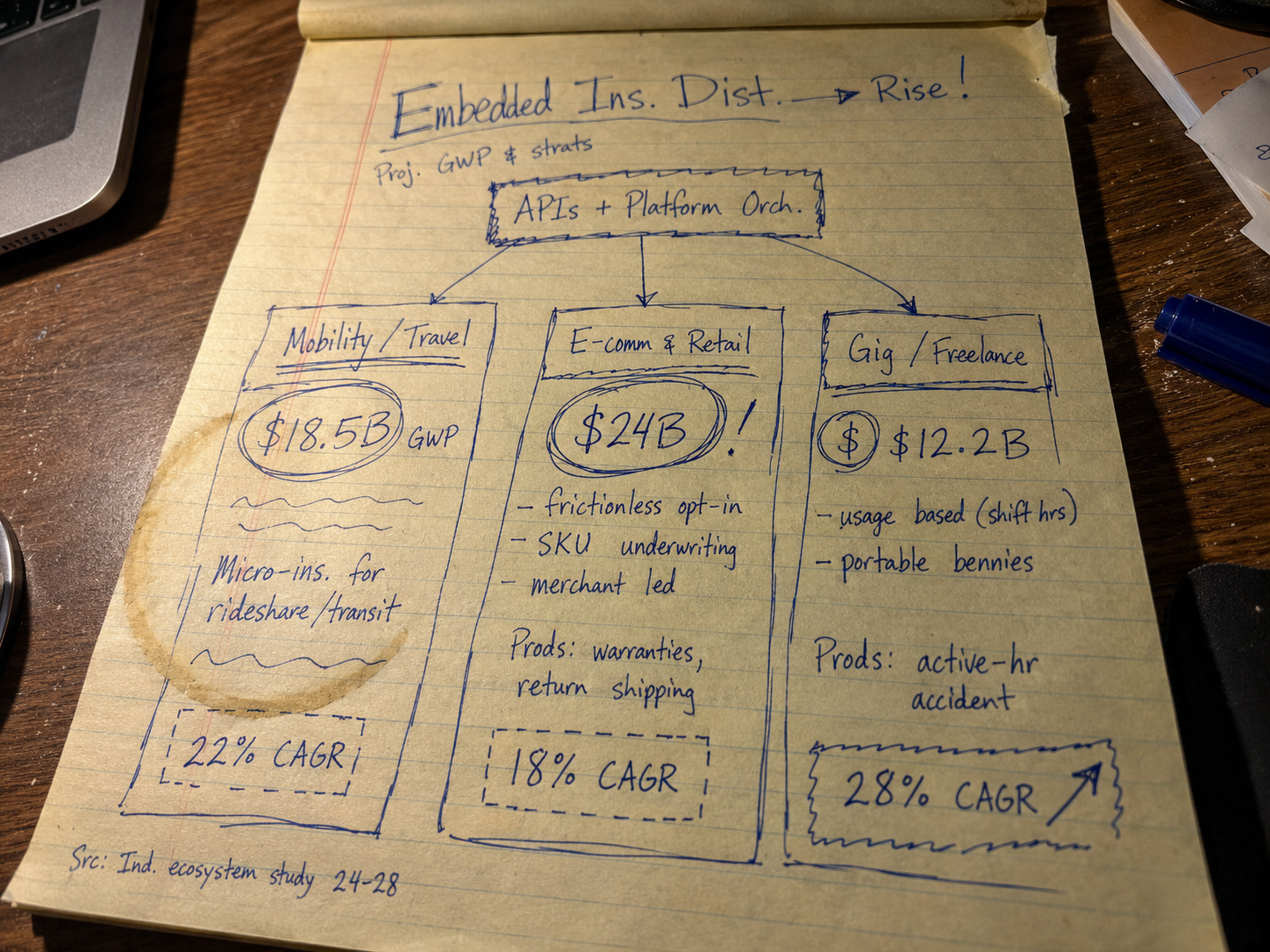
This is a different challenge: the slide needs to preserve numbers, categories, and relative structure. For market maps and financial narratives, editable text and layout are especially important because assumptions often change.
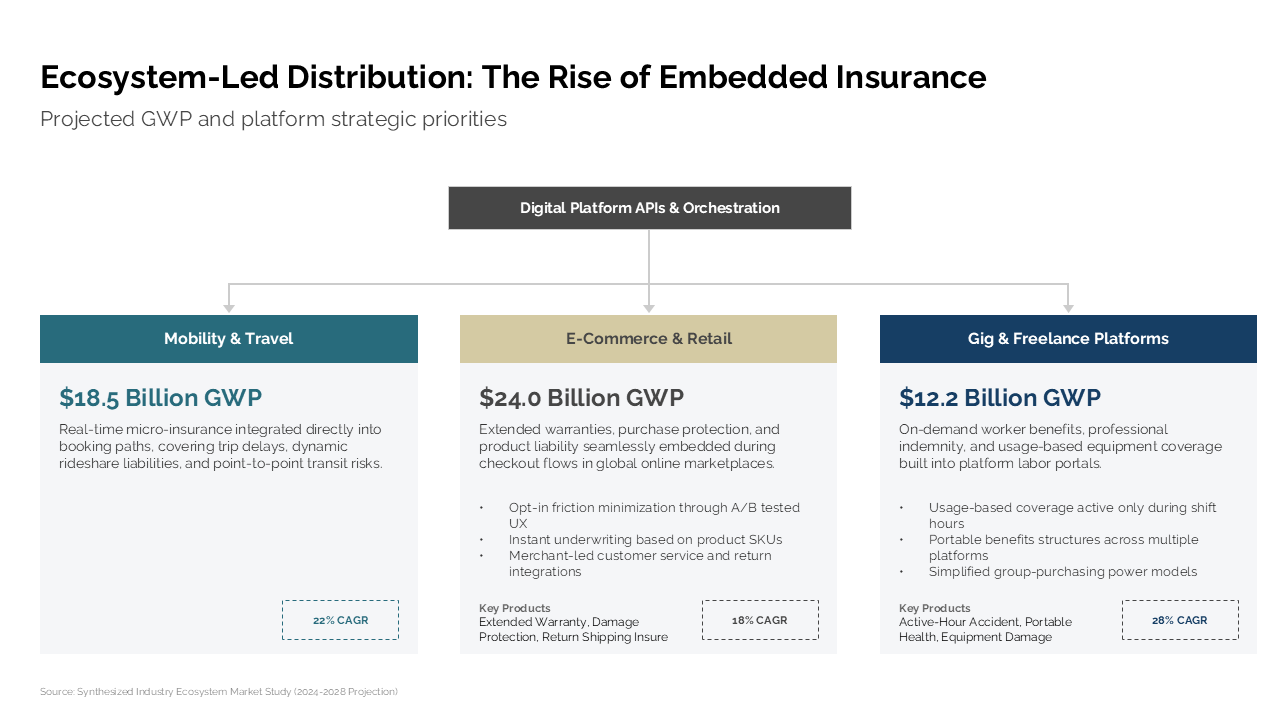
Together, these examples show the broader use case: sketches can be frameworks, cycles, timelines, market maps, or data layouts. The point is not to force every idea into the same slide template. The point is to turn the visible structure of the sketch into a presentation-ready starting point.
Practical Use Cases for Sketch-to-Slide
AutoPresent's Sketch-to-Slide workflow is useful anywhere the first version of an idea is visual and rough:
- Consultants turning whiteboard frameworks into client-ready slides
- Founders converting product or go-to-market ideas into investor deck visuals
- Strategy teams turning workshop notes into leadership presentations
- Product teams transforming user flows or architecture sketches into roadmap slides
- Marketing teams converting campaign concepts into polished internal decks
- Educators and trainers turning classroom diagrams into reusable teaching material
In each case, the sketch captures intent faster than a blank slide can. AutoPresent helps move that intent into an editable presentation format.
How to Create an Editable PowerPoint Slide from a Sketch
The workflow is straightforward:
- Start with a clear sketch. Use a notebook, whiteboard, tablet, or photo of an existing drawing. Clear labels and visible connectors help the system understand the structure.
- Upload the image. In the demo, the selected file is a JPG, but the key is that the visual idea is available as an image.
- Give AutoPresent the desired outcome. A prompt like "Convert my rough sketch into a board-ready slide" tells the system to move beyond transcription and create a polished presentation layout.
- Review the generated slide. Check whether the hierarchy, labels, and relationships match your intent.
- Edit the PowerPoint slide. Refine the text, adjust objects, apply brand styling, and fit the slide into the broader deck narrative.
That final edit step is essential. A good AI-generated slide should not trap you in a static output. It should give you a strong foundation you can keep shaping.
Why This Matters for Presentation Teams
A lot of presentation work is not really design strategy. It is translation work: moving an idea from a rough medium into a polished one.
Sketch-to-Slide reduces that translation work. It lets teams keep using the messy, fast tools that help ideas form, while still ending with the clean, editable slides needed for business communication.
For AutoPresent, the promise is simple: sketch the idea, then let the product help turn it into a slide you can present, edit, and build on.
FAQ
Can AutoPresent turn a hand-drawn sketch into an editable PowerPoint slide?
Yes. The Sketch-to-Slide workflow is designed to convert rough sketches into structured presentation slides with editable elements such as text, shapes, connectors, and layout sections.
What kinds of sketches work best?
Structured sketches work especially well: frameworks, timelines, hub-and-spoke diagrams, circular workflows, flowcharts, market maps, and multi-column comparisons. Clear handwriting and visible relationships between ideas help improve the result.
Is the output just an image of the sketch?
No. The goal is to create an editable slide, not simply place a screenshot into PowerPoint. That means the generated slide can be refined after creation.
Do I need a detailed prompt?
Not necessarily. In the demo, the prompt is simple: "Convert my rough sketch into a board-ready slide." A short, outcome-focused prompt can be enough when the sketch clearly communicates the structure.
Who is Sketch-to-Slide for?
It is useful for anyone who thinks visually before building a deck: consultants, founders, operators, product teams, strategy teams, marketers, educators, and anyone who regularly turns rough ideas into polished presentations.