

Stop wasting hours manually rebuilding whiteboard sketches in PowerPoint. Learn how AutoPresent converts rough brainstorming drawings into boardroom-ready, fully editable slides.
Every productive brainstorming session ends the same way: a whiteboard covered in diagrams, arrows, charts, and handwritten notes. But the momentum often stalls immediately after the meeting. Someone has to take a photo of the whiteboard and spend hours manually recreating those shapes, curves, and text boxes in PowerPoint to make them presentable for clients or executives.
This manual translation process is a notorious bottleneck for consultants, product managers, founders, and strategy teams.
AutoPresent solves this problem by converting rough whiteboard sketches directly into polished, executive-ready presentation slides. Rather than exporting a flat, uneditable image, AutoPresent generates structured layouts where every text box, shape, and diagram element remains fully editable in PowerPoint.
Here is a look at how this workflow works and how you can use it to bridge the gap between brainstorming and the boardroom.
The Step-by-Step Workflow: From Sketch to Slide
Converting a hand-drawn diagram into a professional slide requires only a few simple steps. The process preserves your original ideas while applying professional design standards.
Step 1: Capture and Upload Your Sketch
Start by taking a clear photo of your whiteboard or paper sketch. In this example, we use a photo of a hand-drawn technology curve titled "GRID TECH ADOPTION" (saved as IMG_4321.JPG).
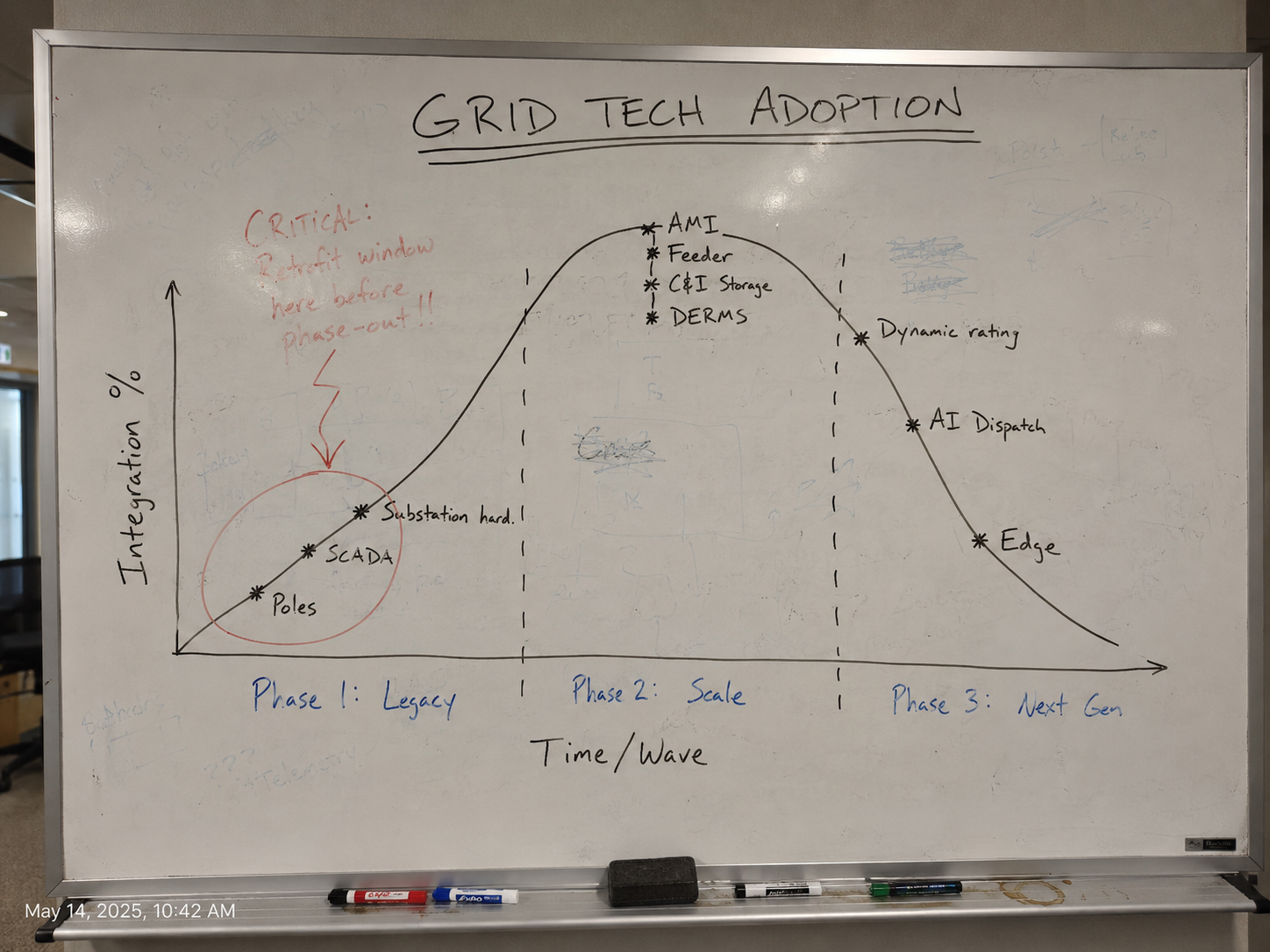
The original sketch contains:
- A hand-drawn bell curve mapping integration percentage against time.
- Handwritten phase labels ("Phase 1: Legacy", "Phase 2: Scale", "Phase 3: Next Gen").
- Specific technology nodes (SCADA, AMI, DERMS, Edge).
- A handwritten callout: "CRITICAL: 2-4yr window here before phase-out!!" circled in red.
Step 2: Provide a Simple Prompt
Upload the image file into AutoPresent and enter a straightforward instruction guiding the output's intent. For instance:
"Convert my team's brainstorming session into an executive readout"
This prompt tells the AI to interpret the raw data and structure it for a professional audience, rather than simply copying the handwritten text verbatim.
Step 3: Generate the Editable Slide
AutoPresent processes the visual structure of your sketch, interprets the handwriting, and generates a clean, structured slide.
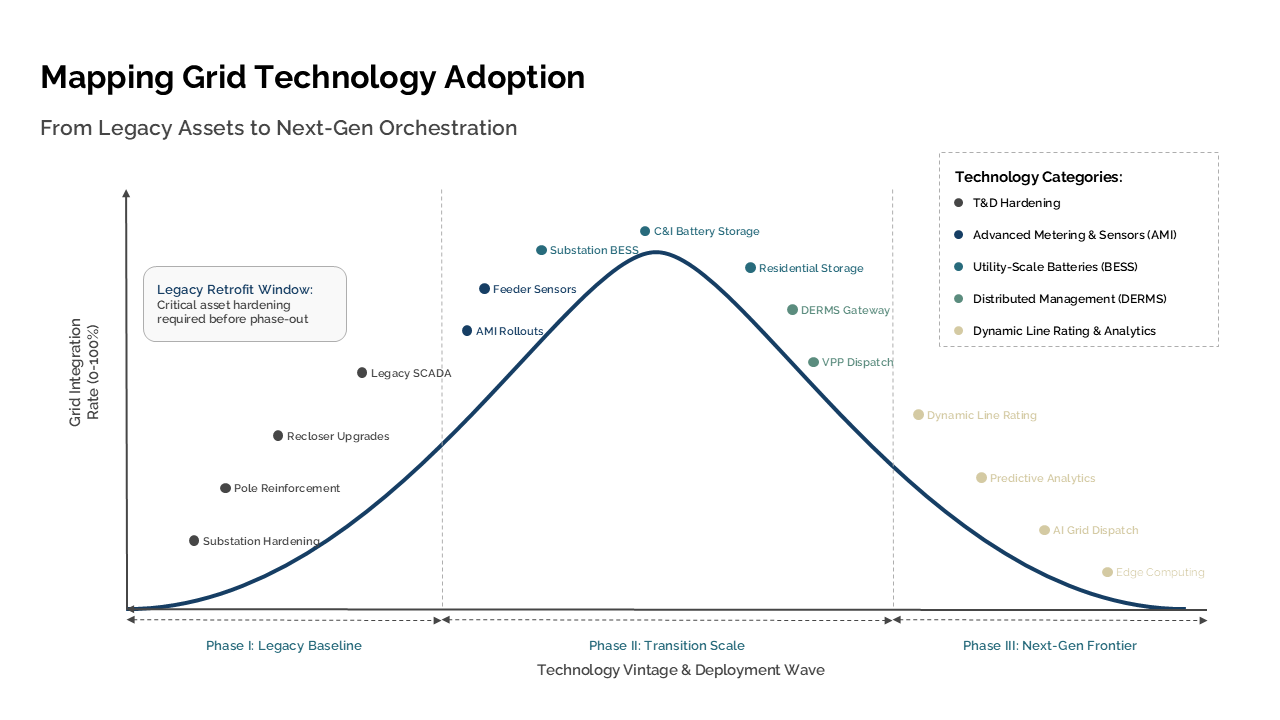
Anatomy of the Transformation: Before vs. After
To understand the value of this workflow, compare the raw whiteboard input with the polished slide output generated by AutoPresent.
| Element | Before (Whiteboard Sketch) | After (AutoPresent Slide) |
|---|---|---|
| Title & Subtitle | Handwritten "GRID TECH ADOPTION" | "Mapping Grid Technology Adoption" with the subtitle "From Legacy Assets to Next-Gen Orchestration" |
| The Diagram | A hand-drawn marker curve | A clean, mathematically smooth vector curve aligned to a professional grid |
| Axes & Labels | "Integration %" and "Time/wave" | "Grid Integration Rate to ~100%" and "Phase I: Legacy Baseline", "Phase II: Transition Scale", "Phase III: Next-Gen Frontier" |
| The Critical Callout | A red marker circle with handwritten warning text | A styled callout box reading: "Legacy Retrofit Window: Critical asset hardening required before phase-out!" with a precise pointer |
| Data Organization | Scattered acronyms (SCADA, AMI, DERMS) | Organized "Technology Categories" legend on the right side of the slide for improved readability |
Fully Editable Output
The most critical aspect of this transformation is that the output is not a flattened image. The generated slide consists of native presentation elements. If you need to change "Phase I" to "Phase 1," adjust the color of the curve to match your corporate brand, or rewrite the callout text, you can do so directly within your presentation editor. The text boxes, shapes, and layout structure remain completely flexible.
Additional Whiteboard-to-Slide Examples
The same workflow works across several kinds of strategy diagrams, from security architecture to adoption frameworks and market cycles.
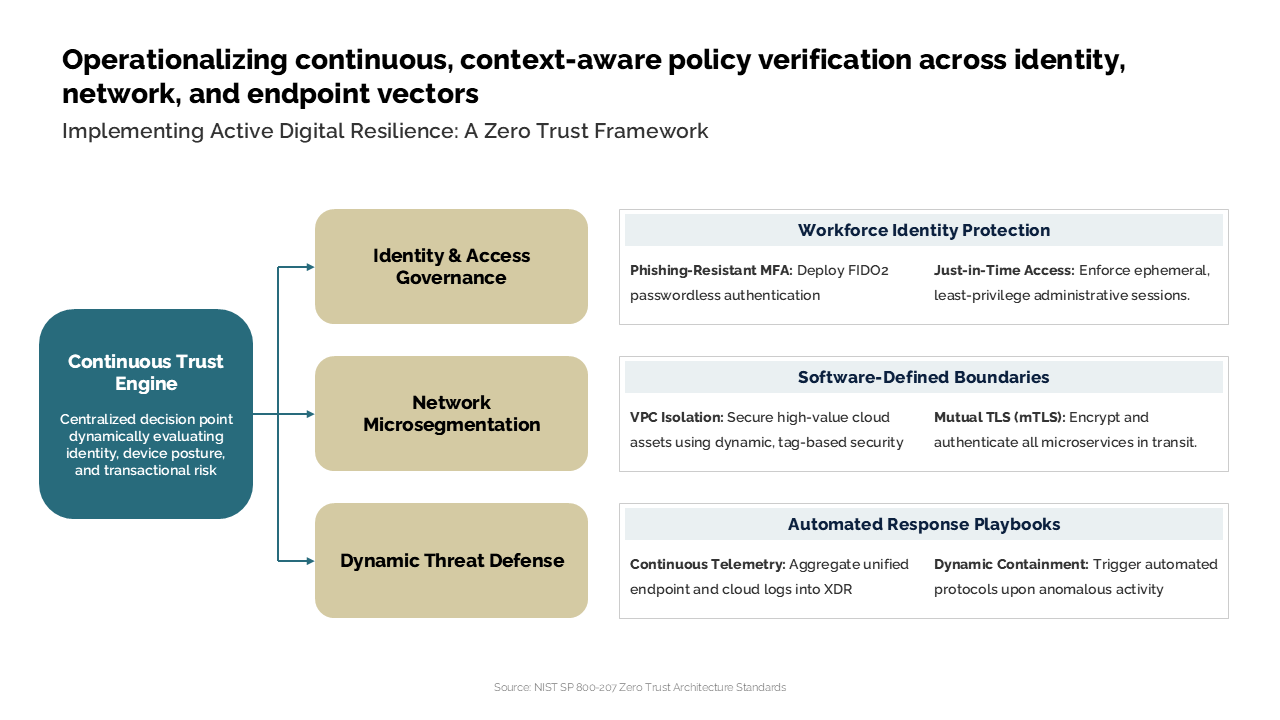
Zero Trust

Enterprise Adoption
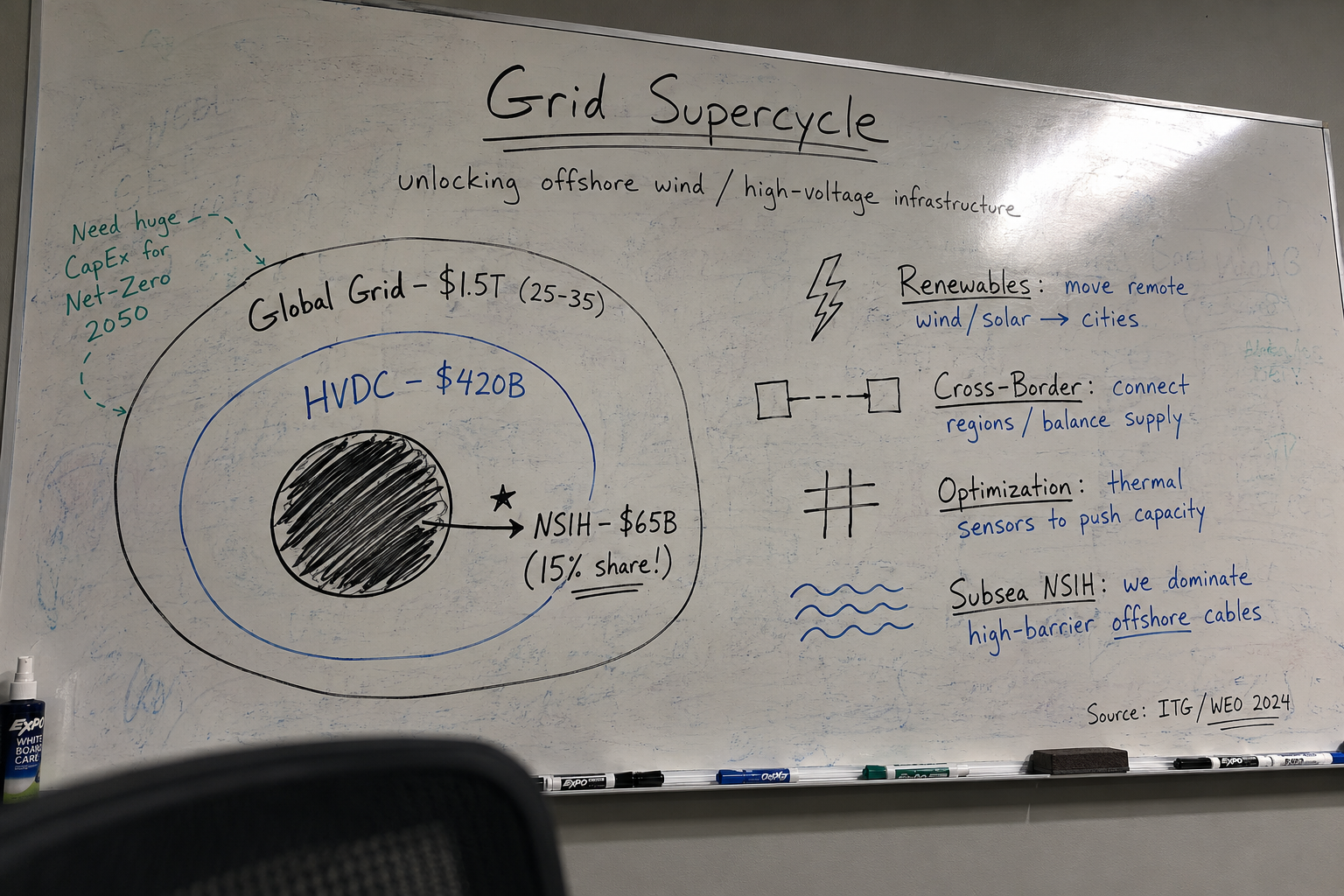
Grid Supercycle
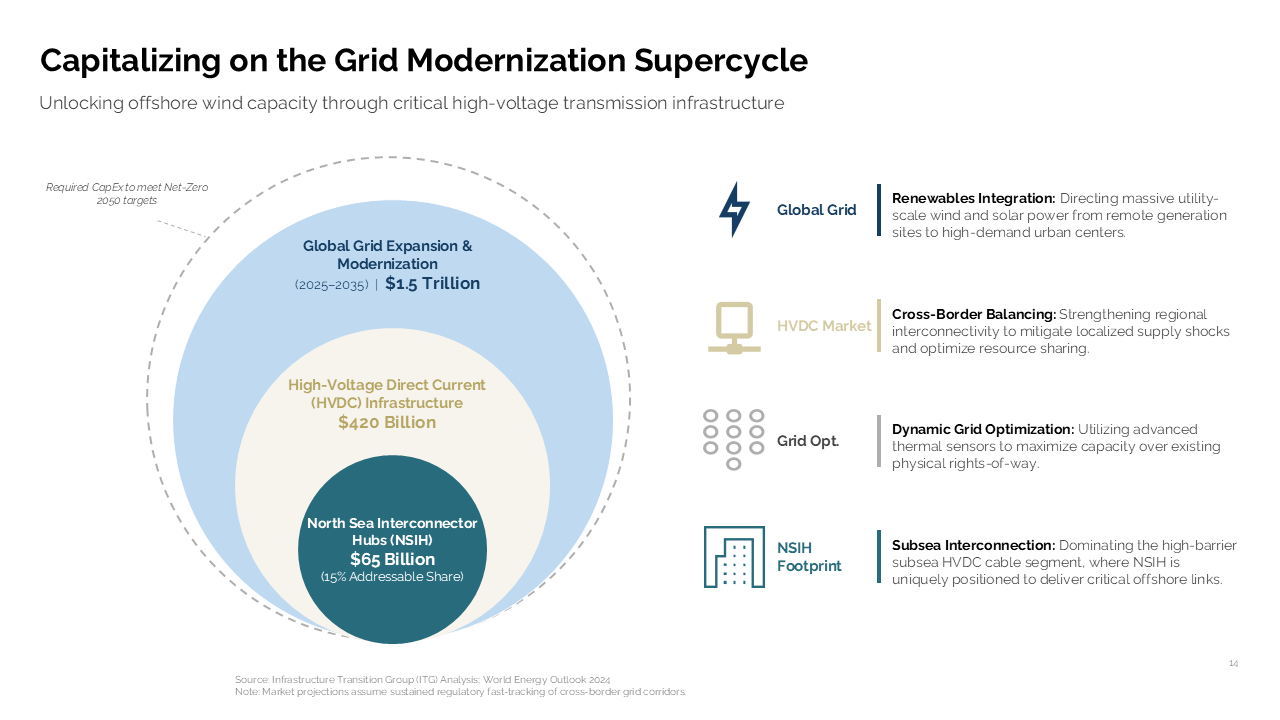
Versatile Visual Frameworks Supported by AutoPresent
Whiteboard sessions produce many different types of diagrams. AutoPresent is designed to recognize and translate various visual frameworks beyond standard curves:
- Security & Architecture Frameworks: Translate conceptual diagrams—such as a "Trust Engine" mapping identity, device, and risk—into structured cybersecurity slides (e.g., "Operationalizing Continuous, Context-Aware Policy Verification...").
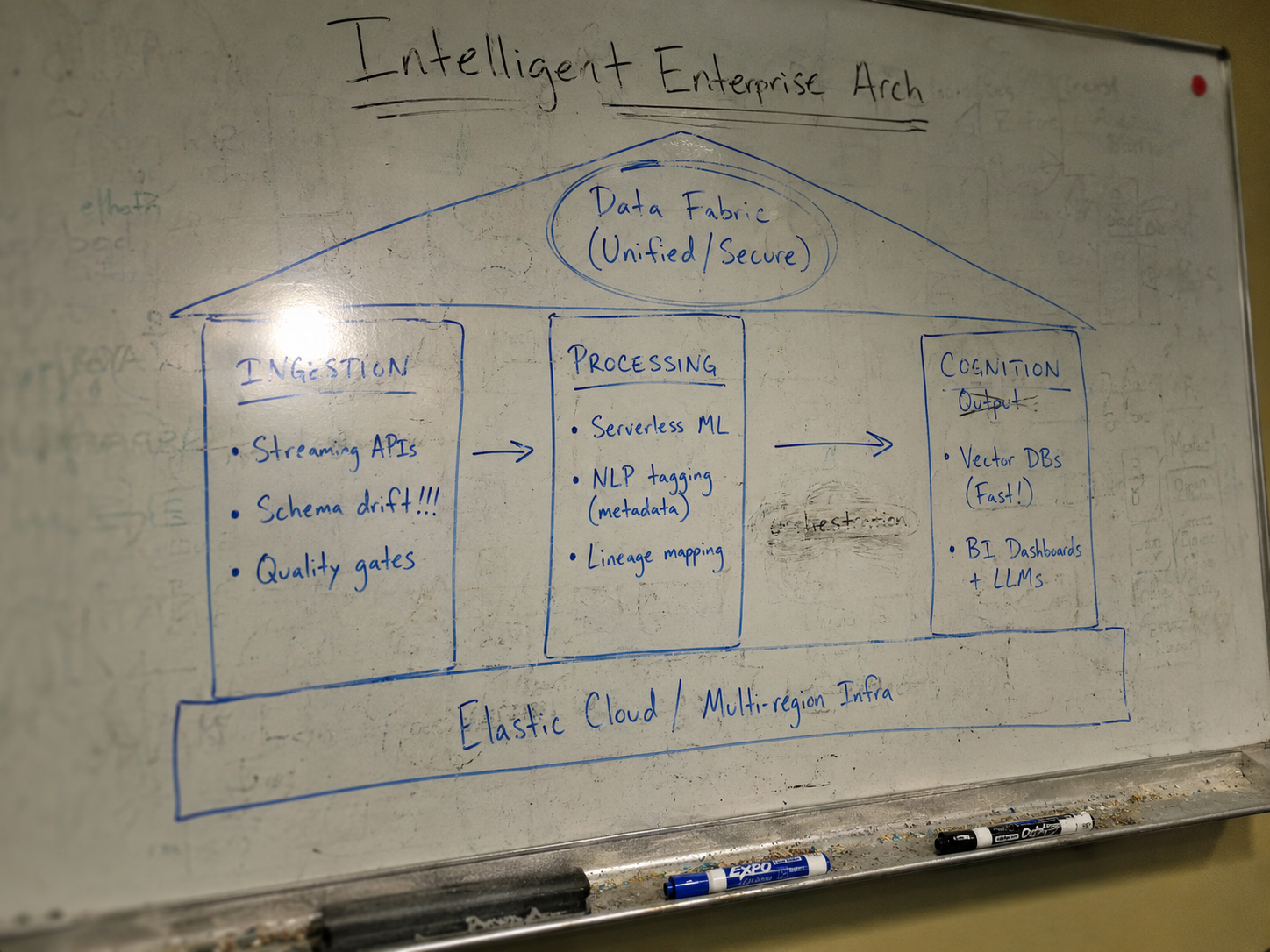
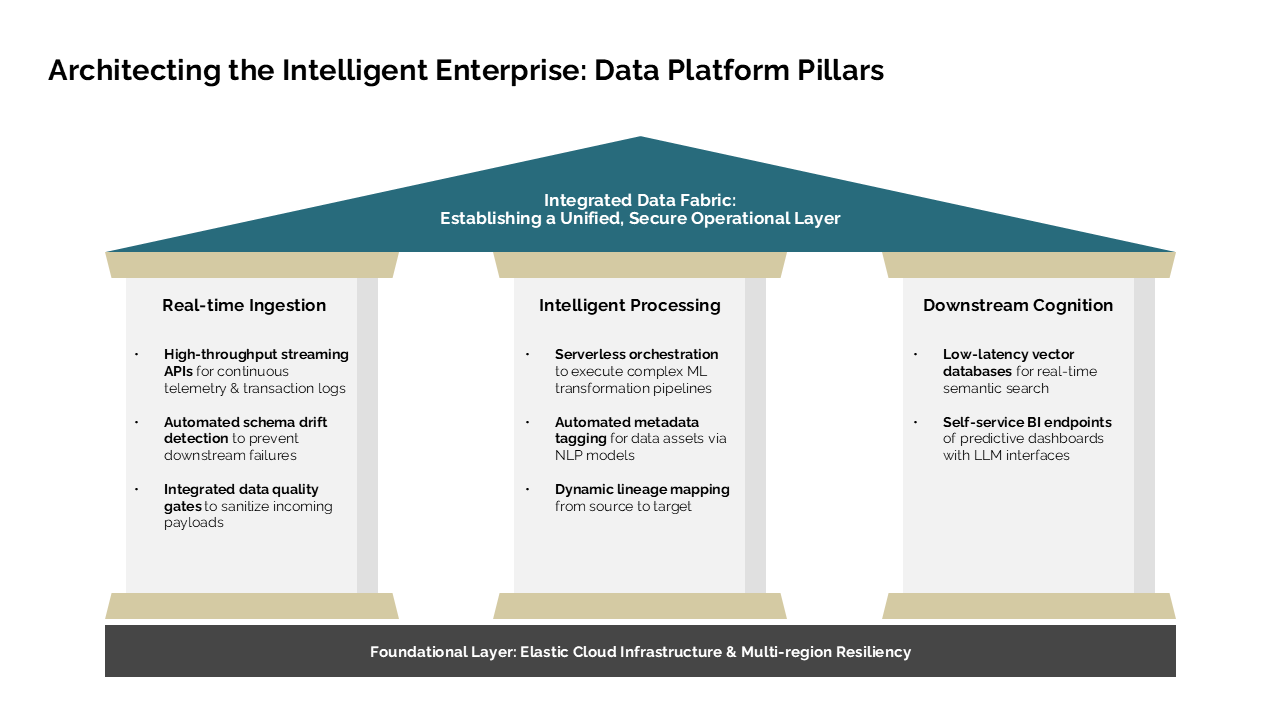
- Pillar & Foundation Diagrams: Convert classic hand-drawn Greek temple or pillar diagrams into clean, aligned corporate architecture slides (e.g., "Architecting the Intelligent Data Platform Pillars...").
- Concentric Circles & Ecosystem Maps: Turn hand-drawn circular diagrams, like a "Grid Supercycle" sketch, into professional, multi-layered circular infographics (e.g., "Capitalizing on the Grid Modernization Supercycle...").
Key Benefits for Professional Teams
Integrating whiteboard automation into your workflow delivers several practical advantages:
- Eliminate Manual Redesign: Stop spending valuable hours drawing circles, aligning arrows, and copying handwritten notes into PowerPoint.
- Maintain Momentum: Deliver polished meeting readouts to clients or internal stakeholders within minutes of finishing a brainstorming session.
- Design Consistency: Ensure that even your roughest ideas conform to professional design standards, clean typography, and clear visual hierarchies.
- Retain Creative Control: Because the final slides are fully editable, you are never locked into the AI's initial design choices. You can refine, edit, and polish the slides to meet your exact requirements.
Frequently Asked Questions
Can I edit the slides after they are generated?
Yes. AutoPresent generates slides using native presentation elements. All text boxes, shapes, lines, and charts can be edited, resized, recolored, or deleted using standard presentation software.
Does the tool support complex hand-drawn diagrams?
Yes. AutoPresent can interpret a wide variety of common business frameworks, including curves, flowcharts, concentric circles, pillar diagrams, and structured lists.
Do I need to write complex prompts to get a good result?
No. Simple, context-setting prompts like "Convert this sketch into a client-facing slide" or "Turn this diagram into an executive summary" are sufficient for the system to understand the desired professional tone and layout.